
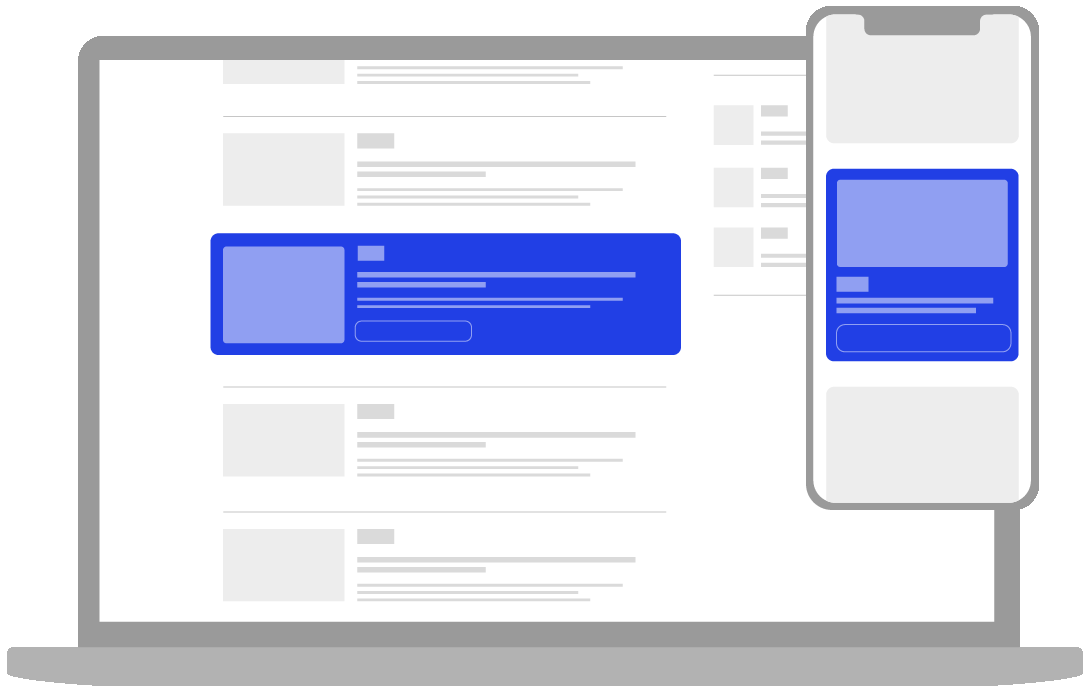
The integrated native format is an advertisement designed to blend seamlessly within the news feed of La Presse's mobile application and website, appearing between article previews.
This ad format is automatically configured and adapts to the environment in which it is published.
You can build your native ads in just a few simple steps. This format is as easy to set up as a social media post. Just insert your image, logo, text, and URL. It's that simple!
Technical specifications and recommendations
Static image or photo
-
Format: JPG or PNG.
-
Must be simple, attractive, and easy to understand.
-
With little or no text.
Logo
-
Format: JPG or PNG.
-
As the display area is square (1:1 ratio), it is best to avoid horizontal logos. Please favor an icon (or favicon) that displays well in this format.
-
Since the company name will be written in the field to the right of the logo, you may crop the image to remove the name from the logo graphic.
Title
-
Capture curiosity with a clear message.
-
The message needs to be both informative and inspirational to maximize performance.
Description
-
Add more information.
-
Note that the description only appears on the desktop version of La Presse’s website.
Call to Action (CTA)
-
Invite readers to click on the ad with a short and engaging call to action.
-
Please note that, to avoid any confusion for our readers, the use of the word article is not permitted. For example, calls to action such as Lire l’article or Consulter l’article are not authorized.
Creation Steps
Check out our Tutorial for a dynamic demonstration, or simply follow the steps below.
-
Click on + New Creative, available during the Creatives step of the Campaign Wizard or within the Creatives tab of an existing campaign (for more details, see the Adding creatives section).
-
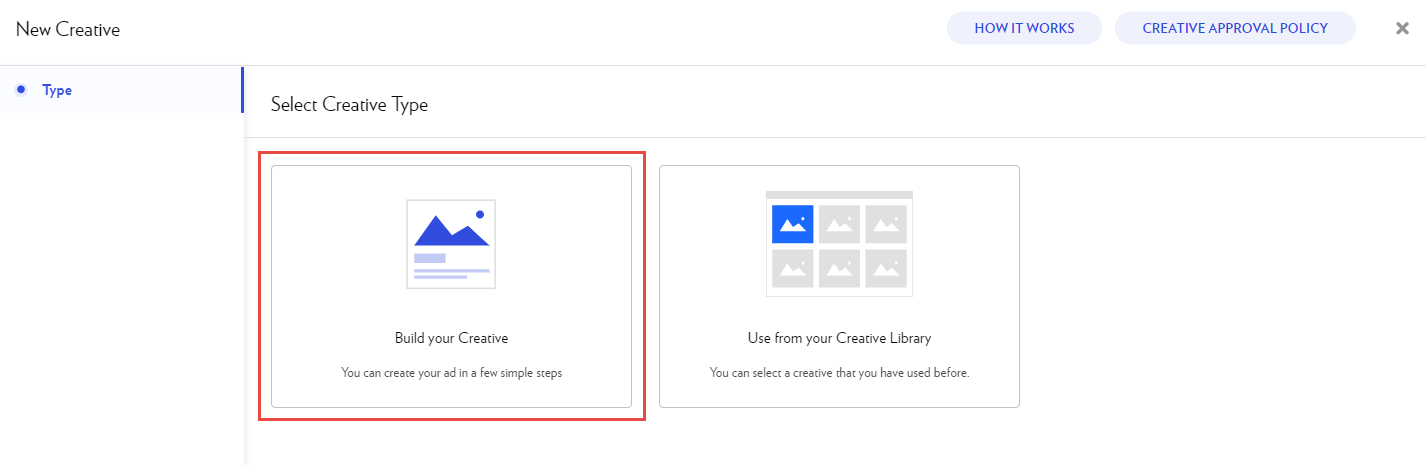
Select Build your Creative.
-
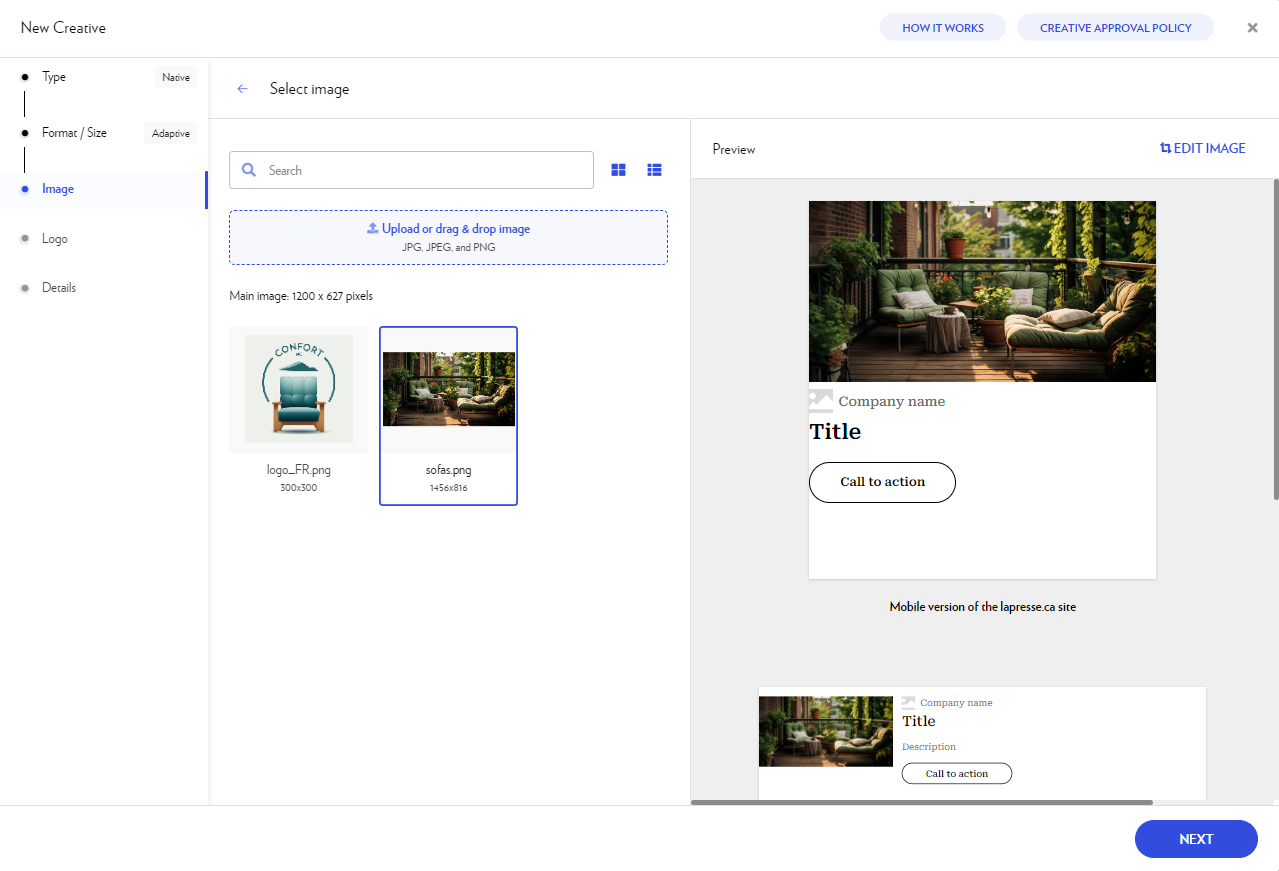
Add the image you want to use. You can:
-
Upload an image from your computer by clicking the blue rectangle.
-
Drag and drop the image file directly into the rectangle.
-
Select an image from your previous uploads.
-
-
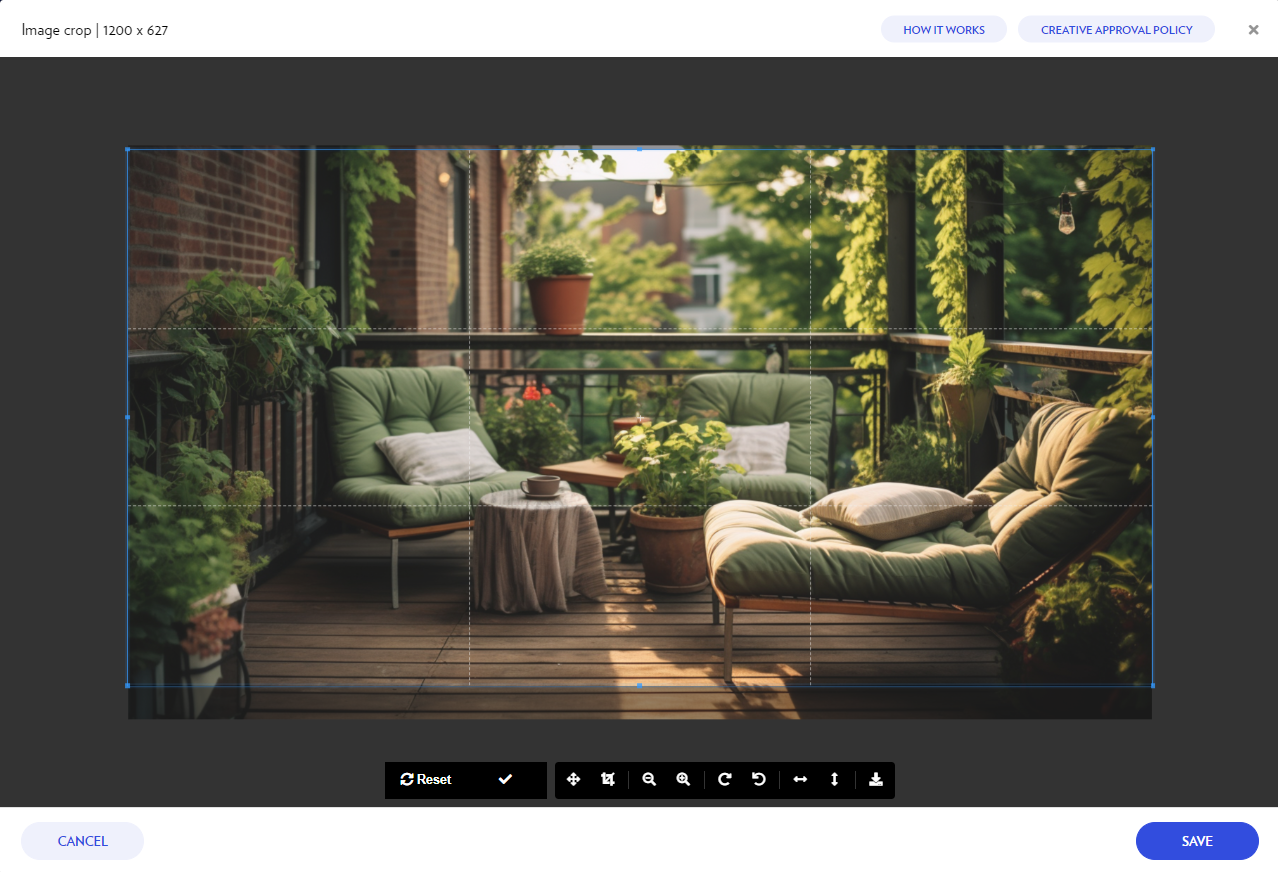
Under Edit image, you can adjust, crop, flip, rotate, and zoom the image. Make sure that the image fits the size. Once you have finished editing your image, click Save.
-
Click Next.
-
Add your logo by following the same steps as for the image (steps 3 and 4).
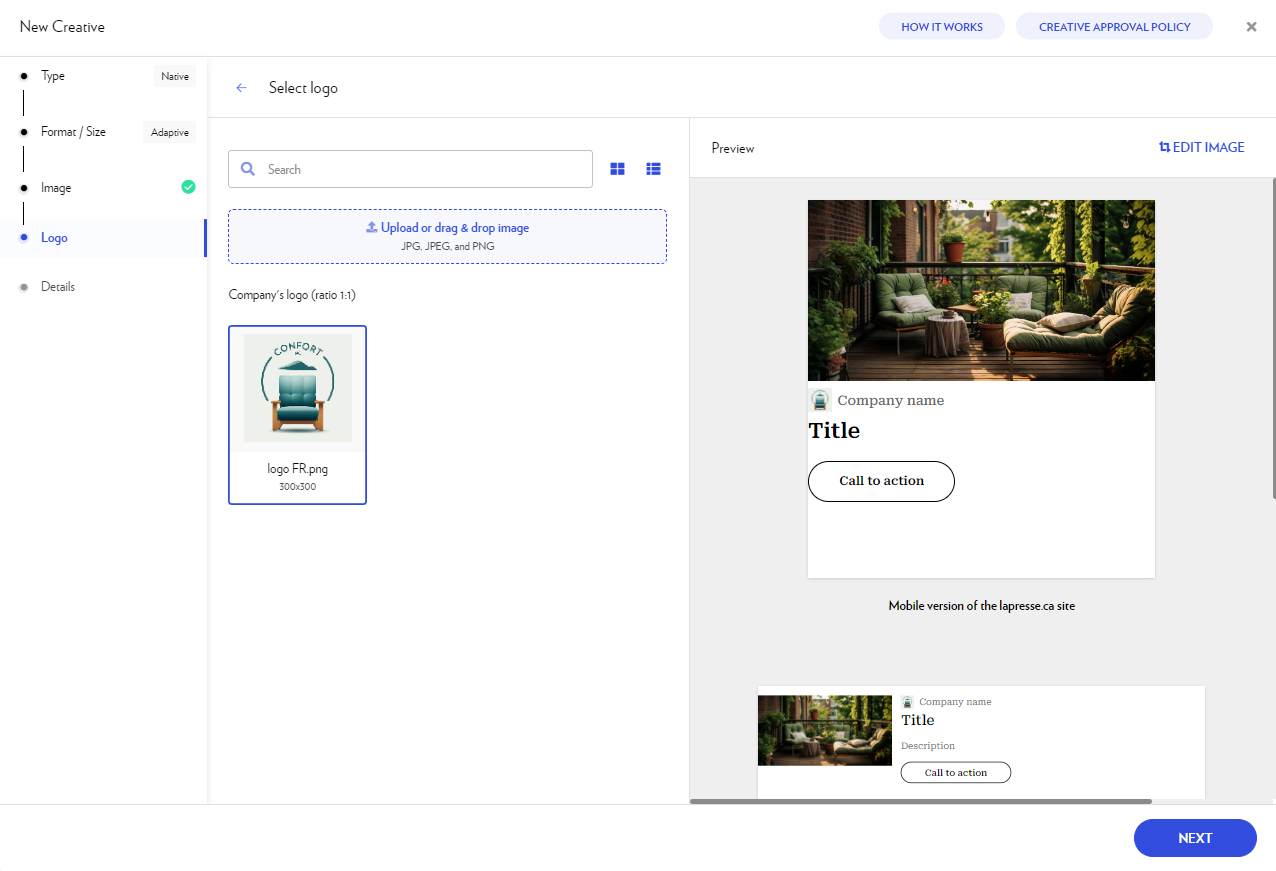
-
Click Next.
-
Add the required information in Details.
The platform displays the maximum character and space count for each field.
If you wish, you can add UTM parameters to your destination URL to identify the origin of the traffic generated by each creative and each campaign.
The real-time preview on the right allows you to visualize your finalized ad. If this pane does not appear, try accessing the platform using private browsing mode.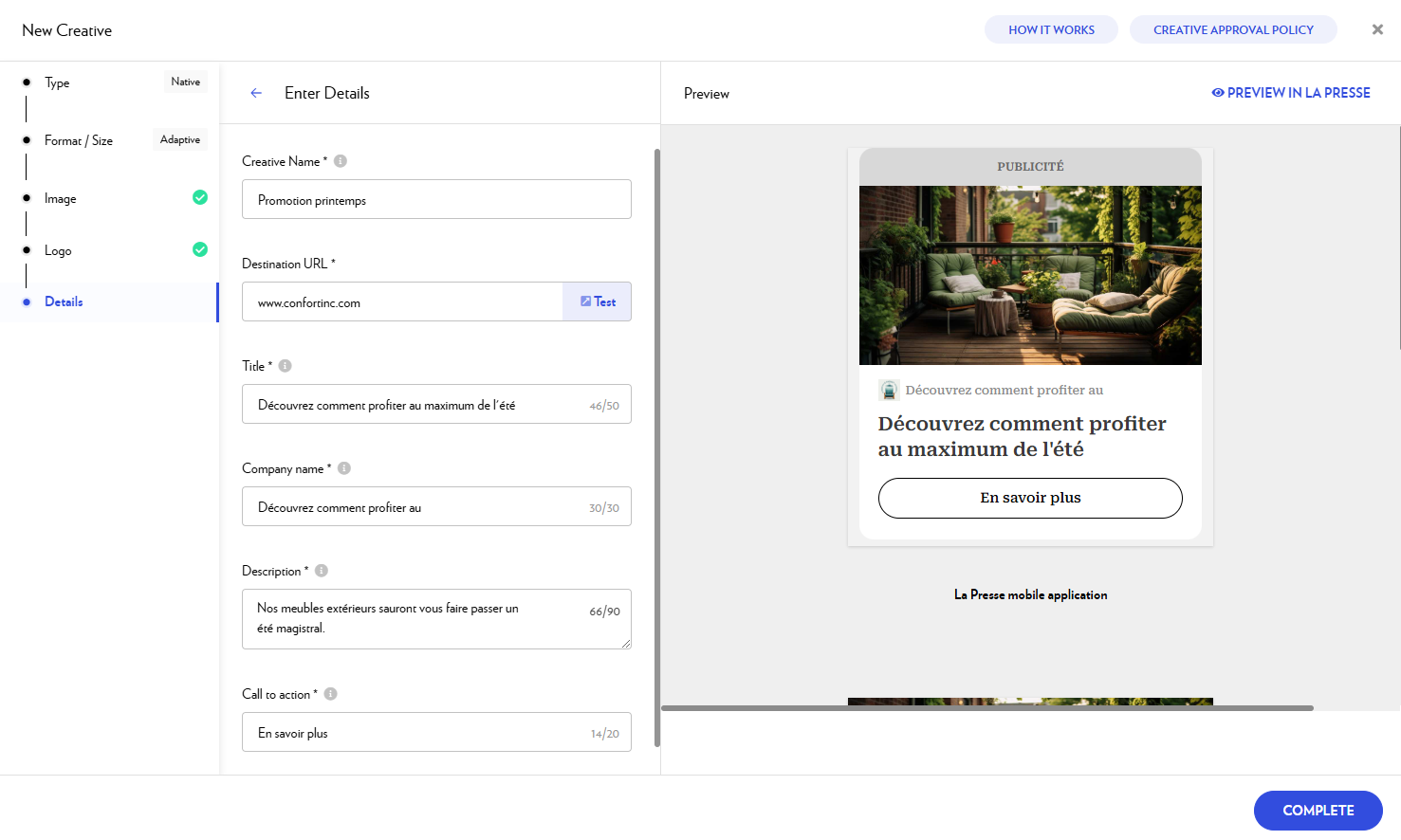
-
Select Full size preview to see your ad in full size. Three formats of your ad are automatically generated to adapt to the following environments: La Presse’s mobile app, the mobile version of lapresse.ca, and the desktop version of lapresse.ca. The copy of the ad only appears on the desktop version of lapresse.ca.
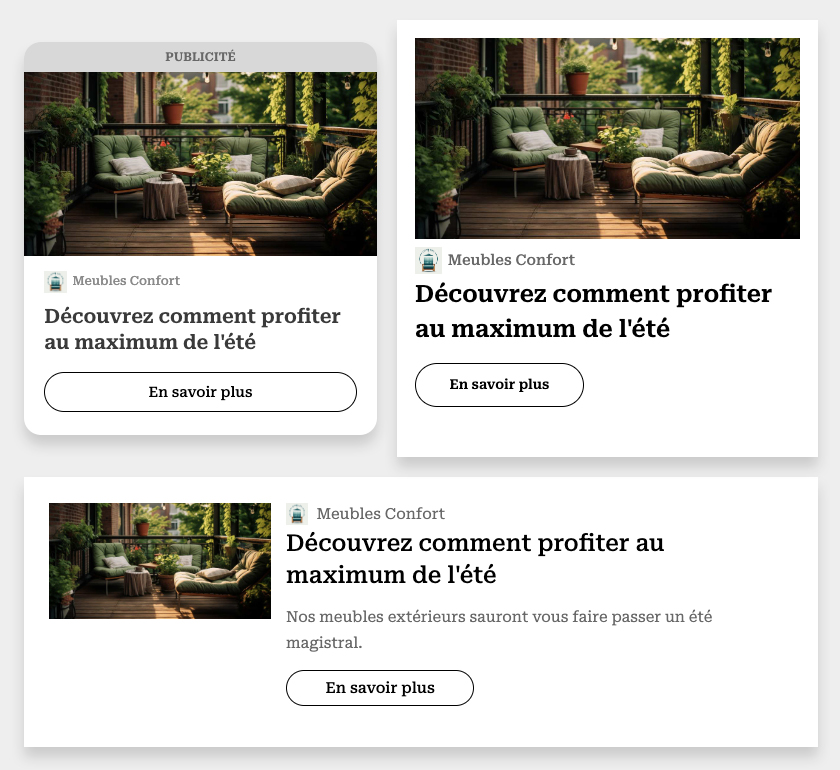
-
Click on Preview in La Presse to see how your ad will appear in our editions.
-
When you are done, select Complete.
-
Your new ad is then added to your campaign and submitted for approval.
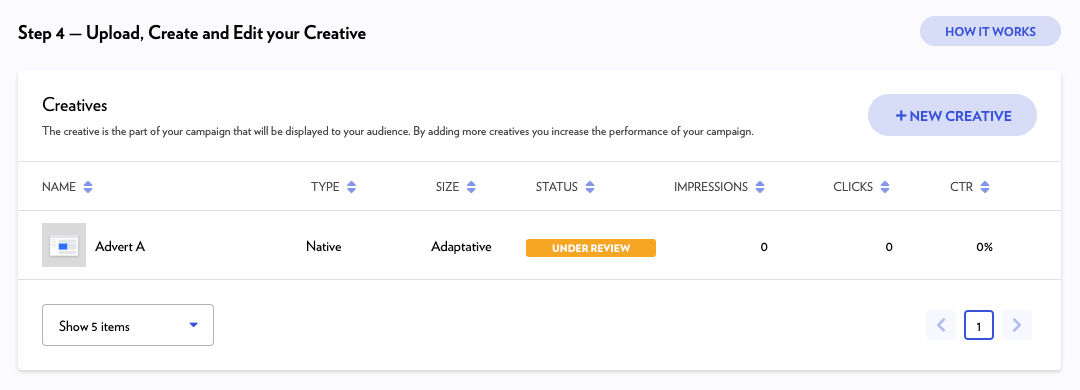
Common questions
When should I choose native ads over banners?
Native formats are ideal when you want to provide a less intrusive experience and boost engagement. Their main advantage is seamless integration: unlike standard banners, they don't look like traditional advertisements.
This helps capture the attention of readers affected by "banner blindness"—those who instinctively ignore ad zones. Native ads are especially effective for informative or educational content, as they blend naturally with the surrounding editorial environment.
How can I easily extract a website’s favicon?
The simplest method is to use Google's service. Copy the URL below and add the website’s domain at the end:
http://www.google.com/s2/favicons?domain=
Example for La Presse: http://www.google.com/s2/favicons?domain=lapresse.ca
Can I use emojis in native formats?
Yes, emojis are fully supported in native ads. 😀
However, we recommend using them sparingly to maintain a clean and professional appearance.