
You can include as many creatives as you like in your campaign and add them at any time, even once the campaign has begun.
Creative types
Your campaign can contain only one of these creative types:
-
Standard Banners: 300x250 pixels (big box) and 300x600 pixels (double big box).
-
Videos: 16:9 format with a duration of 15 or 30 seconds
-
Integrated Native Formats: created directly on the Atelier Direct site
Adding creatives
You can add creatives at different times:
-
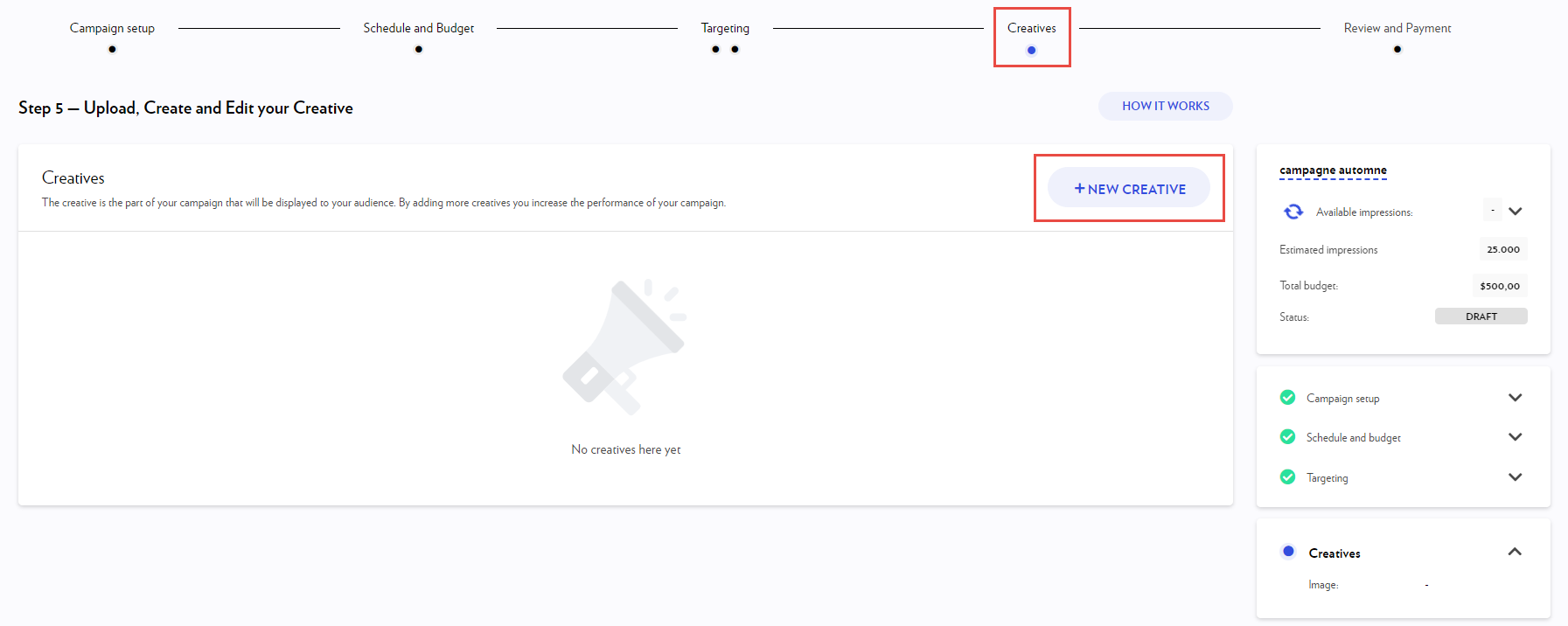
When creating a campaign
At the Creatives step of the Campaign Wizard, click on + New Creative.
-
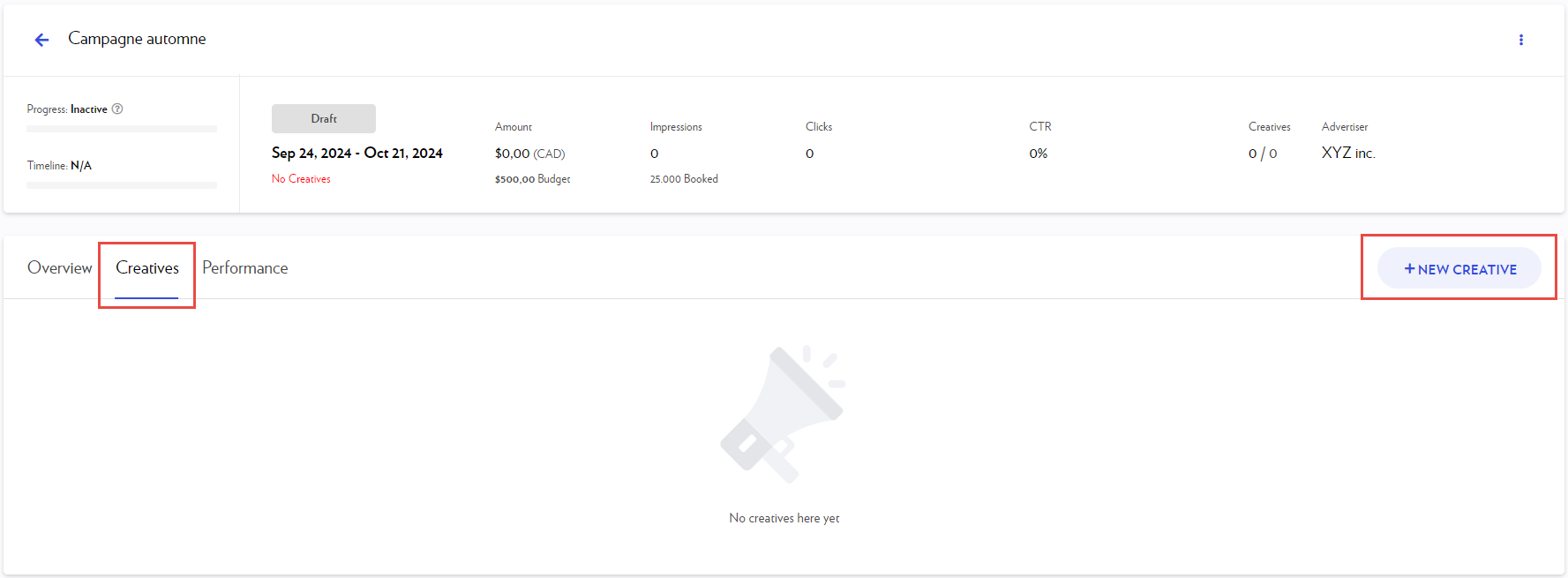
In an existing campaign
Open the campaign, go to the Creatives tab, then click on + New Creative.
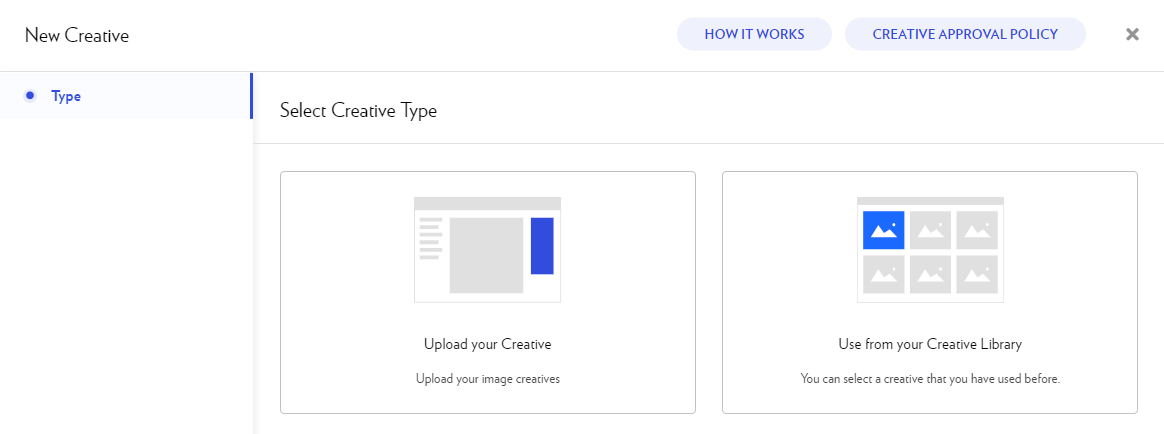
Depending on the type of creative chosen during the campaign configuration, the addition tool will offer you the choice to:
-
Build your creative: integrated native format.
-
Upload a creative:
-
Select from your library a creative that you have used before.
Creative statuses
All creatives are verified and approved by the administrator before being broadcast according to our Advertising approval policy.
Here is a description of their statuses:
|
Status |
Description |
|
DRAFT |
Statut initial si la campagne n’a pas encore été payée. |
|
UNDER REVIEW |
Status displayed once the campaign is paid, or when adding a new creative to an already paid campaign. The creative is submitted for approval. |
|
ACTIVE |
The creative is approved and ready to be broadcast. If a creative is reused from the library, it is automatically approved and moves to this status. |
|
REFUSED |
The creative is not approved. The reason for the refusal is sent by email. |
|
PAUSED |
Status of an active creative whose broadcast has been manually suspended. |
Pause and resume creatives
You can pause the delivery of an entire campaign or a specific creative at any time.
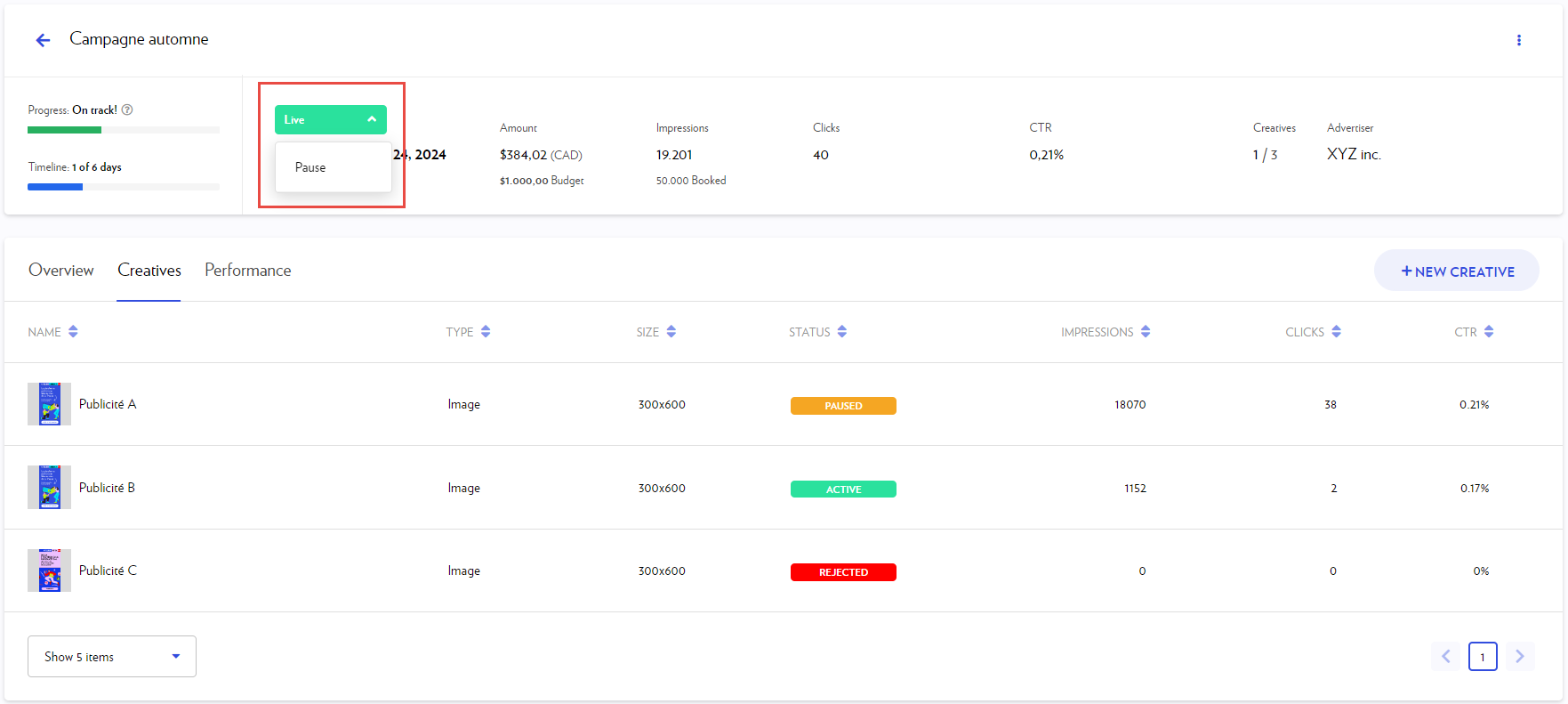
Pause a campaign
To suspend the delivery of all creatives in a campaign:
-
Navigate to the Campaigns section in the blue sidebar on the left.
-
Click on the campaign name to open it.
-
Select Pause from the campaign status drop-down menu.
Pause individual creatives
To suspend the delivery of a specific creative:
-
Navigate to the Campaigns section in the blue sidebar on the left.
-
Click on the campaign name to open it.
-
Select the Creatives tab.
-
Click on the Pause icon that appears when hovering over the ad row.
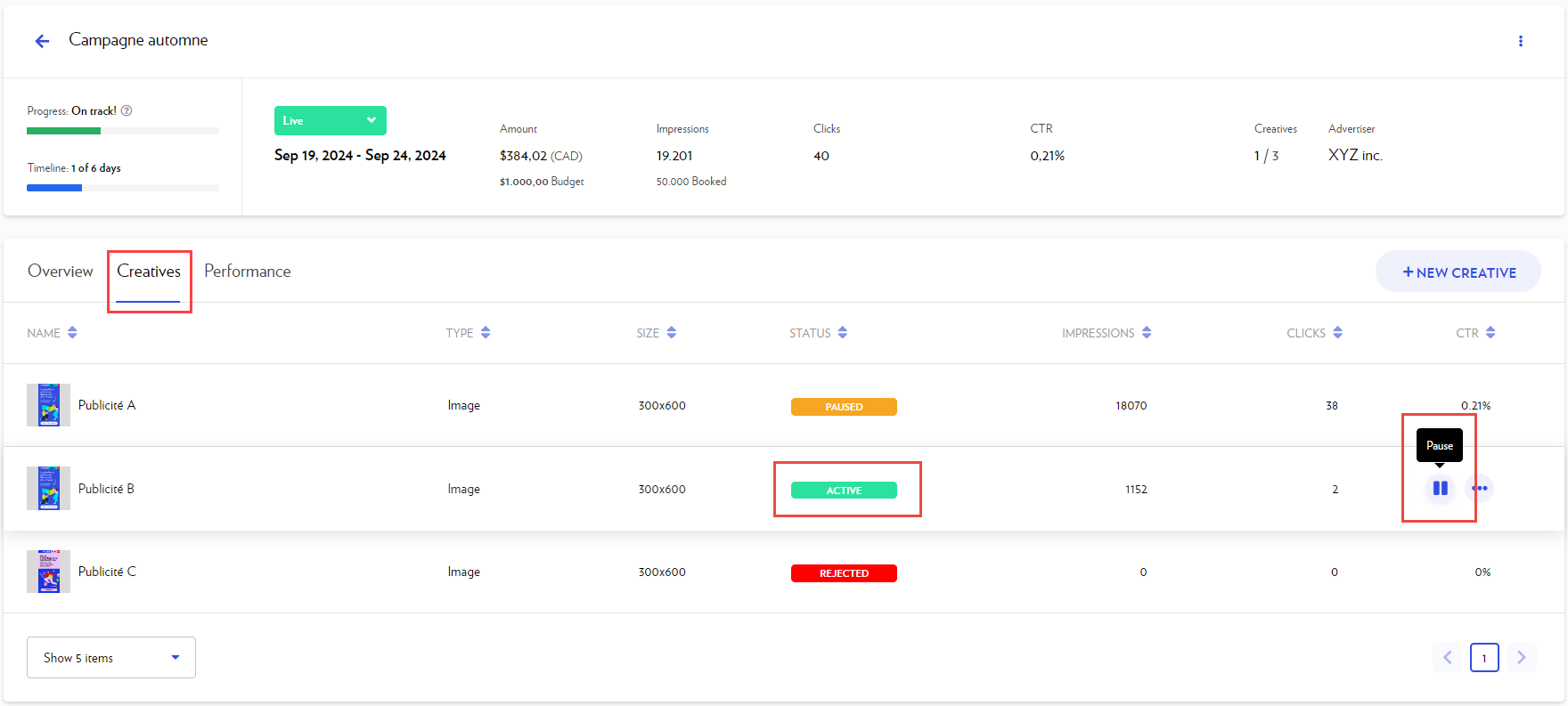
Note:
-
If you have re-used a creative for multiple campaigns, the creative will only be paused on the campaign you are pausing it from.
-
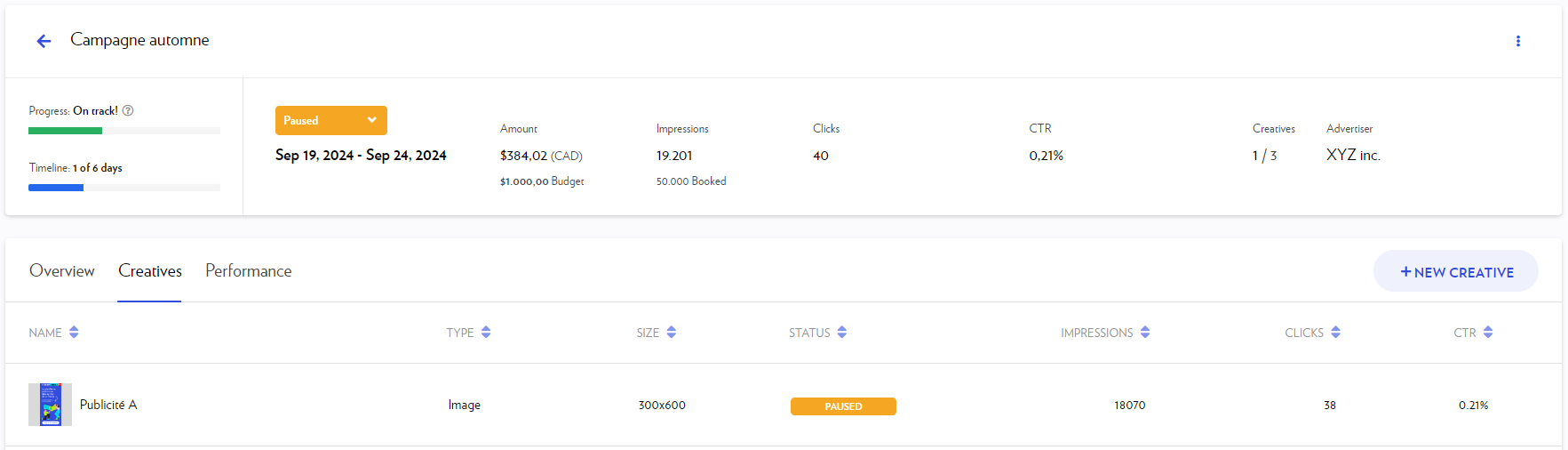
If all creatives in a campaign are paused, the campaign status will automatically become PAUSED as well.
Resume a paused campaign
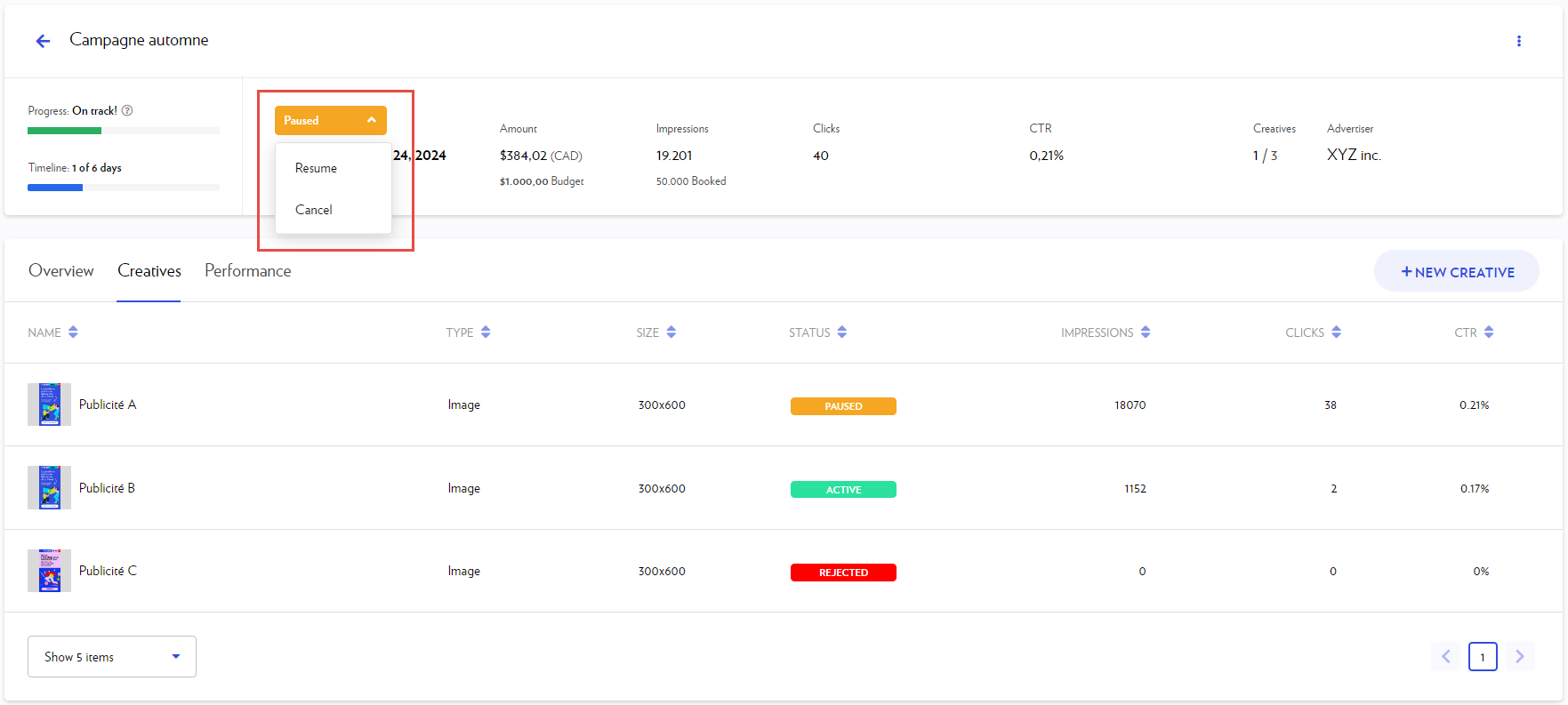
To resume delivery for ACTIVE creatives in a PAUSED campaign:
-
Navigate to the Campaigns section in the blue sidebar on the left.
-
Click on the campaign name to open it.
-
Select Resume from the campaign status drop-down menu.
Resume paused creatives
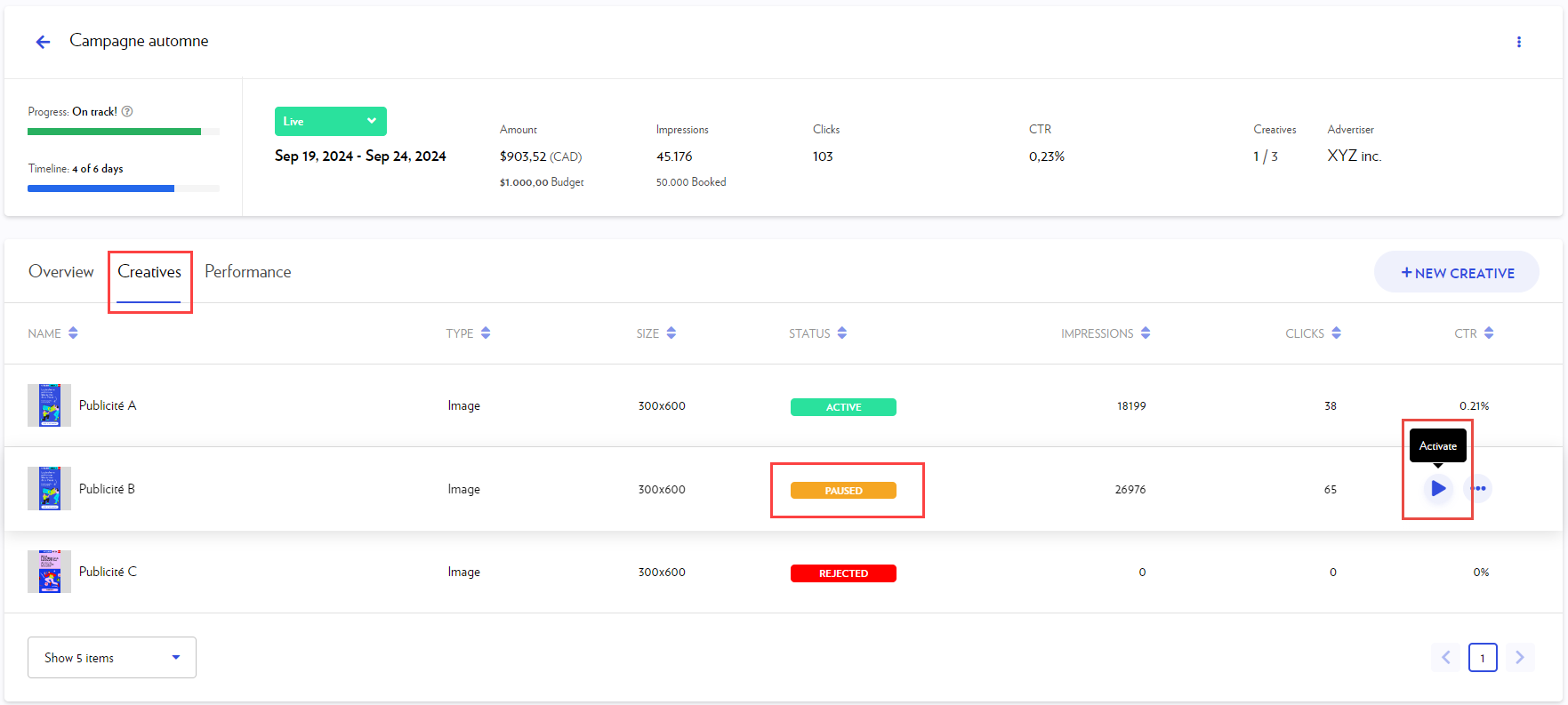
To resume delivery of a specific PAUSED creative within an ACTIVE campaign:
-
Navigate to the Campaigns section in the blue sidebar on the left.
-
Click on the campaign name to open it.
-
Select the Creatives tab.
-
Click the Activate icon that appears when hovering over the ad row.
Important
If the campaign is also PAUSED , you must reativate it for delivery to resume.
Common questions
When does my campaign go live?
A campaign becomes LIVE when:
-
Its start date is reached.
-
And at least one creative is approved ( ACTIVE status).
How do I edit a creative?
It depends on the current status of your creative.
- If the status is DRAFT :
-
Click on the campaign name to open it.
-
Go to the Creatives tab.
-
Hover over the row and click the pencil icon that appears on the right.
- If the status is UNDER REVIEW :
-
Notify us immediately at atelier-direct@lapresse.ca. This prevents us from approving the creative before you’ve made your changes.
-
Follow the same steps as you would for a DRAFT .
-
Email us again once your updates are complete.
- If the status is ACTIVE :
Once a creative is active, it can no longer be edited (including the URL), even if it hasn't started serving impressions yet. To make changes, you must:
-
Pause the current ad.
-
Add a new ad with your desired changes.
Can my campaign contain multiple ads?
Yes. Your campaign can include multiple ads. You can include them from the start and/or add new ones along the way.
Can I run A/B tests?
Yes. In fact, it's a great idea to keep an eye on your campaign’s performance while it's running.
By default, the platform works for you: it automatically shows the ads that get the most clicks more often. You can also take control manually by pausing ads that aren't performing as well or by adding new ones.
Can I show all my ads an equal number of times?
Yes. By default, the system shows your best-performing ads more often to get you better results. If you prefer all your ads to be seen equally, follow these steps:
-
Go to the Creatives tab.
-
Locate the option to optimize creative rotation.
-
Slide the button to the left to disable it.
Your views will then be shared equally among all your ads.
Will the same number of impressions be delivered every day?
No. Impressions are delivered using a front-loaded delivery mode. Slightly more than half of the impressions will be delivered during the first half of the campaign.
How long does it take for ads to be approved?
Ad approval during regular business hours is usually fast, but it can take up to 2 business days.
How soon will my new ad start running?
When you add a new ad to an active campaign, delivery will begin approximately 2 hours after approval (which takes place during regular business hours).