
Campaigns are created in the Campaign Wizard.
To start, click on the Create Campaign button in the header of most of the platform’s pages.

Campaign setup
In step 1 of the Campaign Wizard, you set up your campaign using the options available.
-
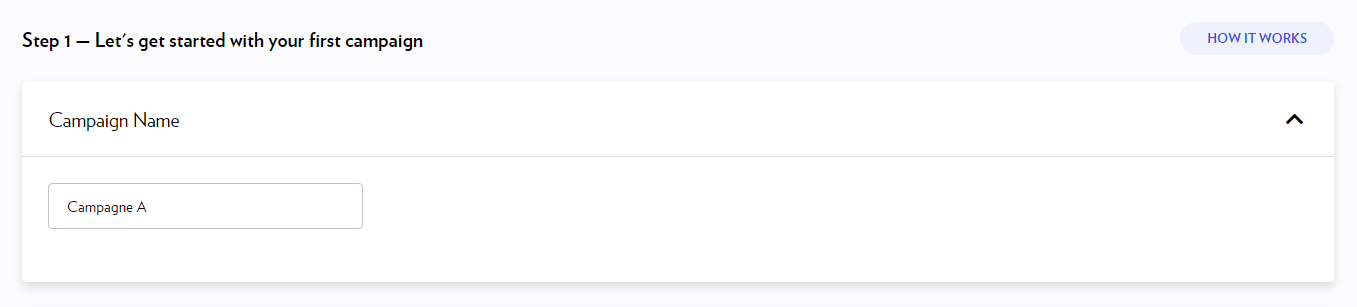
Enter a name for your campaign and click Next.
-
Select one of these two ad distribution methods for your campaign:
-
Reach a wide audience: to broadcast your campaign among our readership, to target by gender or to publish a video.
-
Target a specific audience: to select one or more audiences, based on areas of interest
In both cases, you will have the option to define geo-targeting.
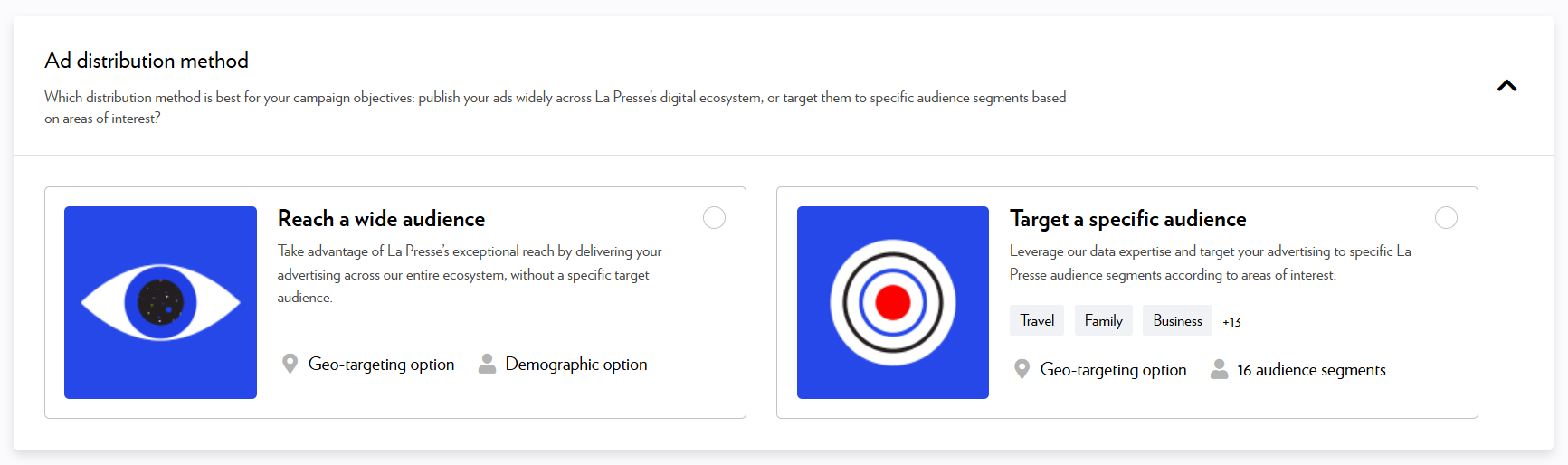
Demographic targeting, interest-based audiences and geo-targeting are selected at a later step.
-
-
Select a product. Three options are available:
-
The integrated native formats, which are custom formats integrated in the article feeds in La Presse’s mobile app and on lapresse.ca website.
-
The standard display ads, which are banner ads published across the entire La Presse ecosystem (mobile and tablet apps, and website). Available formats are 300 × 250 (big box) and 300 × 600 (double big box).
-
The 15- or 30-second in-text videos ROS, that are published between two paragraphs of an article, on La Presse's mobile app and lapresse.ca website.
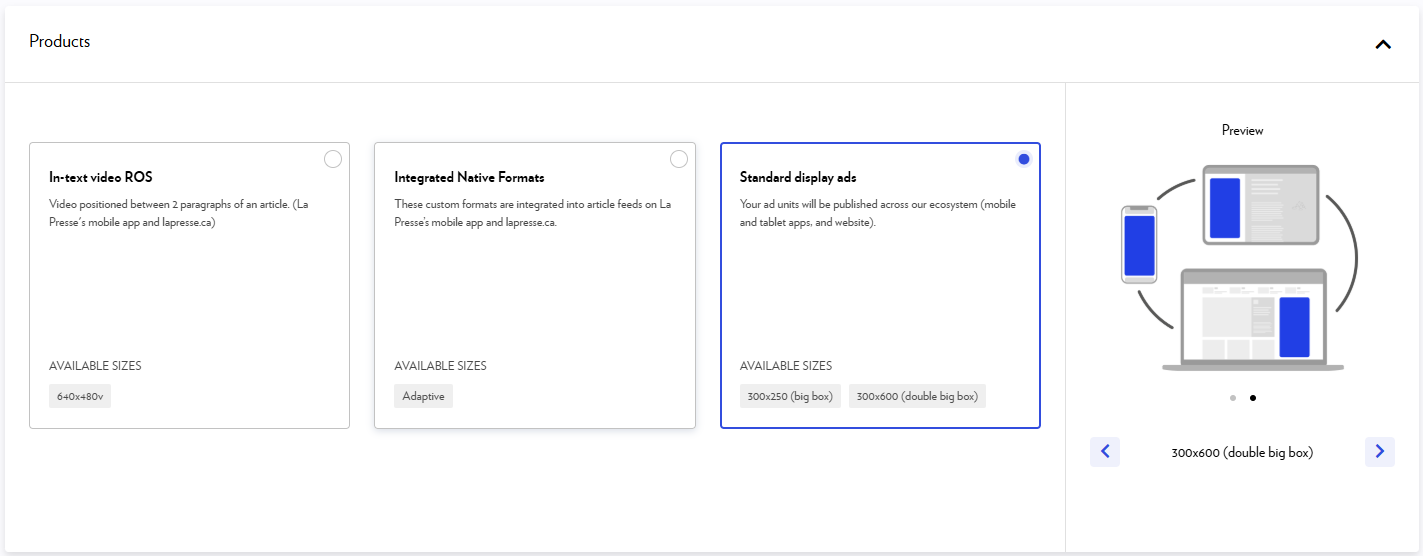
When you select each option, you can preview the available product sizes and ad-slots in the side panel.
-
-
Click Next to proceed to the next step.
Schedule and budget
In step 2 of the Campaign Wizard, you determine the schedule and the budget for your campaign.
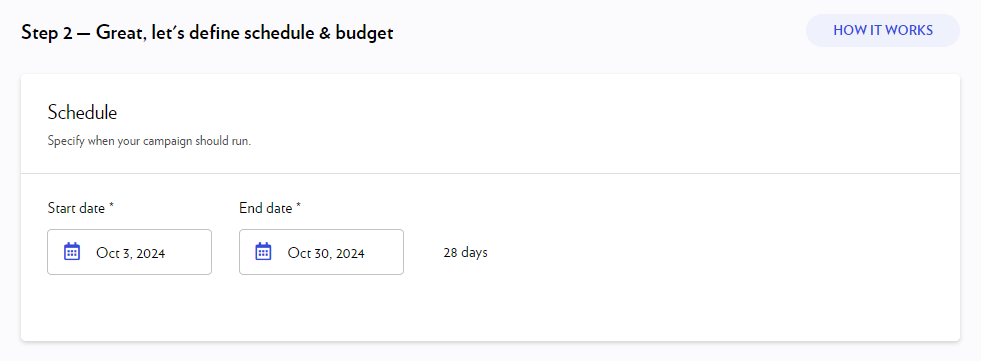
First, indicate the period of your campaign by selecting the start and end date.
You can modify the dates as long as the campaign is not live. Once it has started, the end date remains adjustable.
Then, enter the budget you wish to invest in your campaign.
You can switch between setting your budget in dollars or impressions by clicking on the arrows.
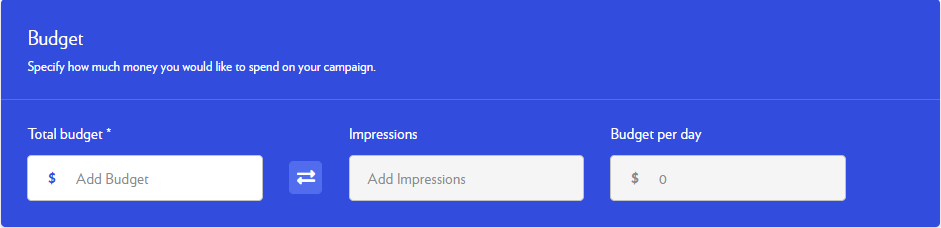
You only pay for what is delivered. If the campaign does not deliver all the impressions booked, you will receive a refund.
Availability
At each step, the platform verifies if the impressions you are looking for are available. You will be notified if there is limited availability.
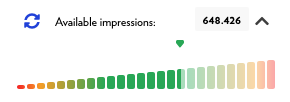
If the availability of impressions is low for your campaign, you can extend the delivery period or broaden your targeting.
What is the difference between available and estimated impressions?
Available impressions: The maximum number of impressions possible based on your targeting and selected dates.
Estimated impressions: The number of impressions you purchase based on your budget. We use the term "estimated" because minor under-delivery can occur, though it is rare. In such cases, any undelivered impressions will be refunded directly to your credit card.
Targeting options
The next steps of the Campaign Wizard help you target the readers you want to reach.
For tips, see the Targeting section.
Targeting by gender
If you have selected Reach a wide audience in the Campaign setup step, you can specify in step 3 whether you want to reach women or men. Just check Specific and check the desired gender.
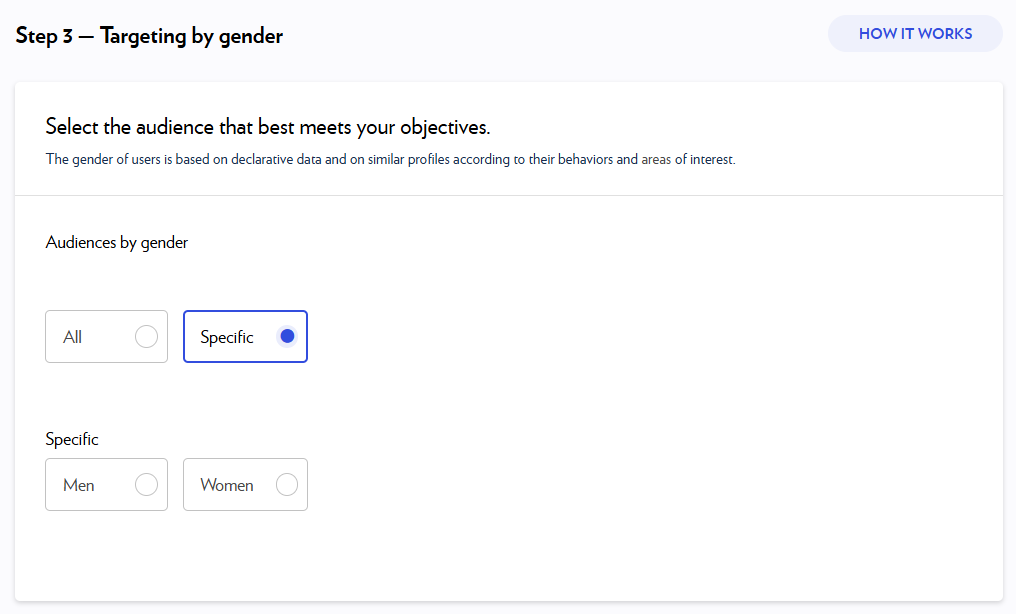
If you don't need to target by gender, you can simply move on to the next step. All is selected by default.
Targeting by areas of interest
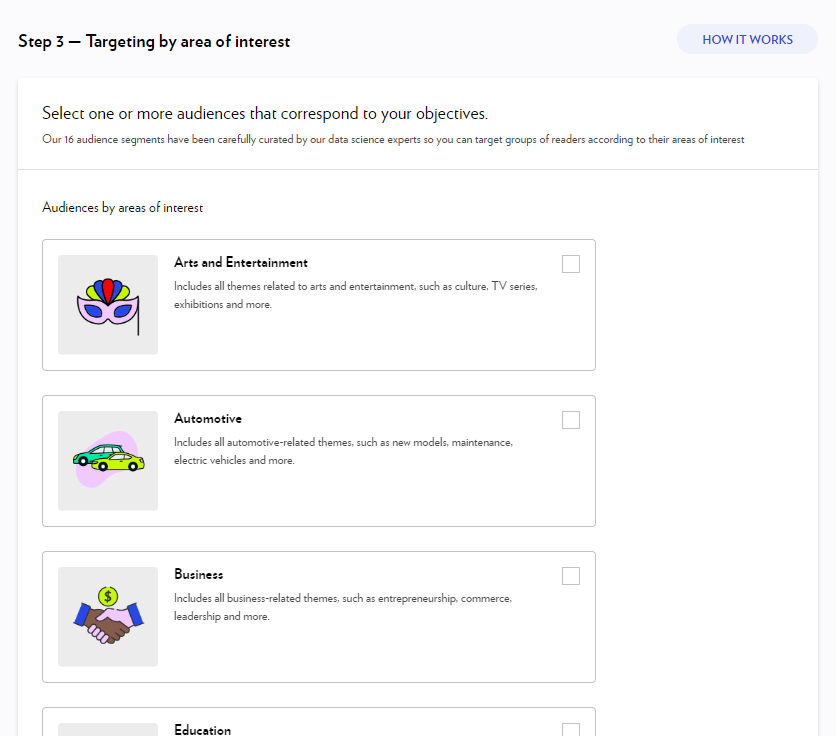
If you have selected Target a specific audience in the Campaign setup step, it’s in step 3 of the Campaign Wizard that you select one or more audience segments based on areas of interest. You can choose as many segments as you wish.
The full list of available audiences can be found in the Audience segments (areas of interest) section.
Geo-targeting
The next step allows you to define a geographic target.
You have two options: select from predefined combinations of regions and metropolitan areas, or choose specific municipalities or neighbourhoods. Both options can be used together.
For more details, see the Geographical zones section.
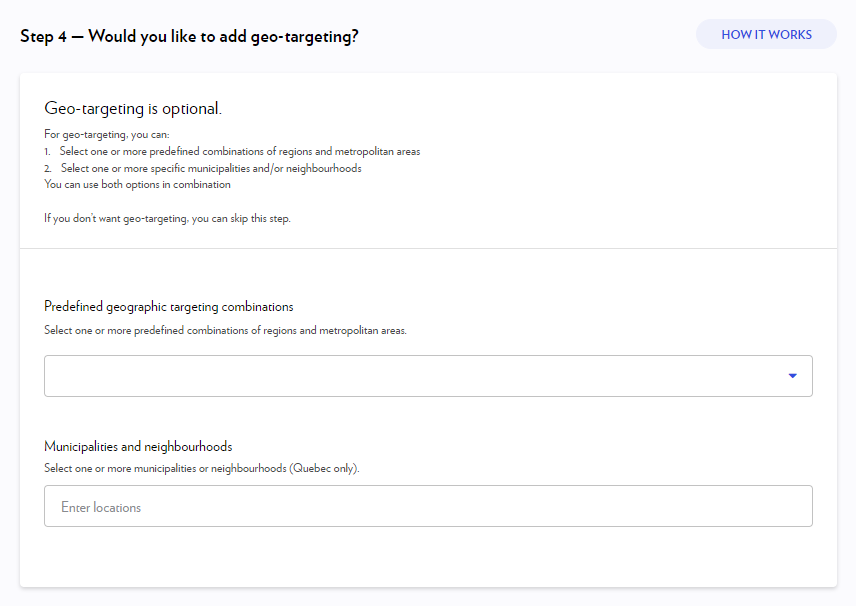
Geo-targeting is optional. Click Next if you want to skip this step.
Creatives
In the next step, you can upload, create, or edit your creatives. Creatives are your actual ads which will be shown to your audience.
You can add your creative(s) while creating your campaign by clicking + New creative or you can skip this step and come back to it later by clicking Add Creative later.
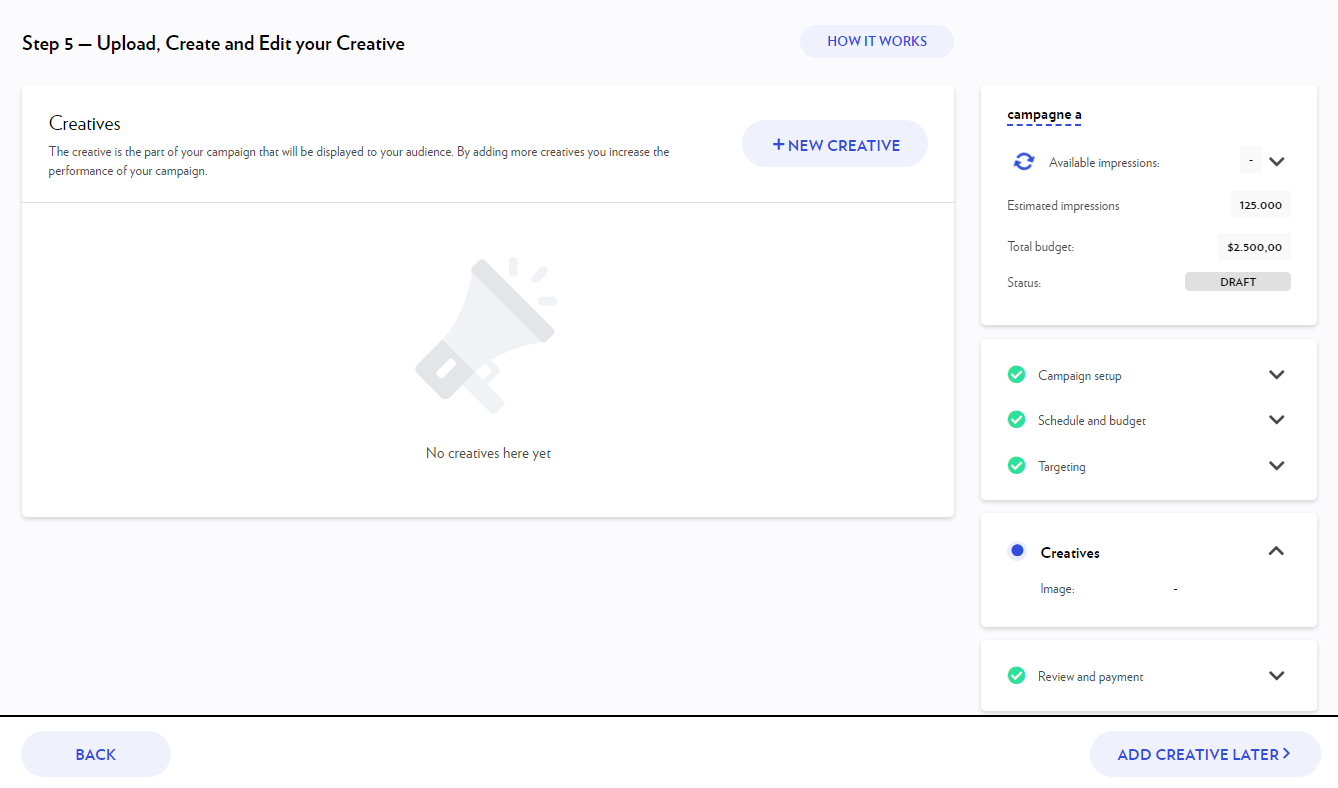
For more information on the creatives, go to the Creatives section.
Review
In the last step of the Campaign Wizard, you review your campaign.
Use the Reference field to add invoice information, such as a purchase order number or, if you're an agency, the name of your client.
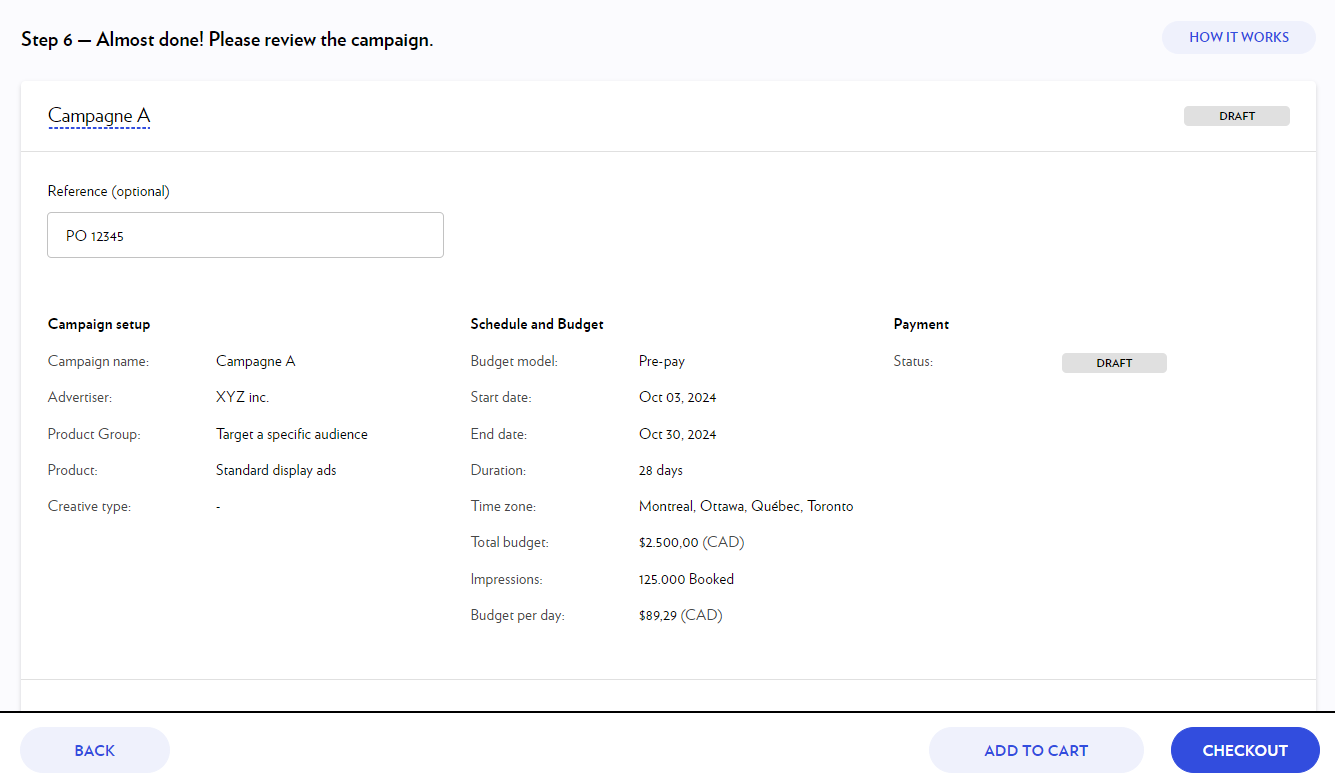
When you are done, you can either Add to cart or Checkout.
Checkout
For more information on payment, go to the Checkout and payment section.