
You can checkout and pay for one campaign or multiple campaigns at the same time.
Payment - One campaign
In the last step in the Campaign Wizard, you can either:
-
pay for the campaign immediately by clicking on Checkout,
-
or you can postpone payment by clicking on Add to cart.
When you edit a previously saved campaign, the campaign opens in the wizard. If you have yet to pay for this campaign, you have the option to do so by clicking on Checkout.
-
Click Create Campaign for a new campaign or Edit for an existing campaign.
-
You can navigate back and forth at any time using Back and Next.
-
When you are satisfied with the choices made in each step, review the campaign.
-
You can always change targeting options and add creatives later.
-
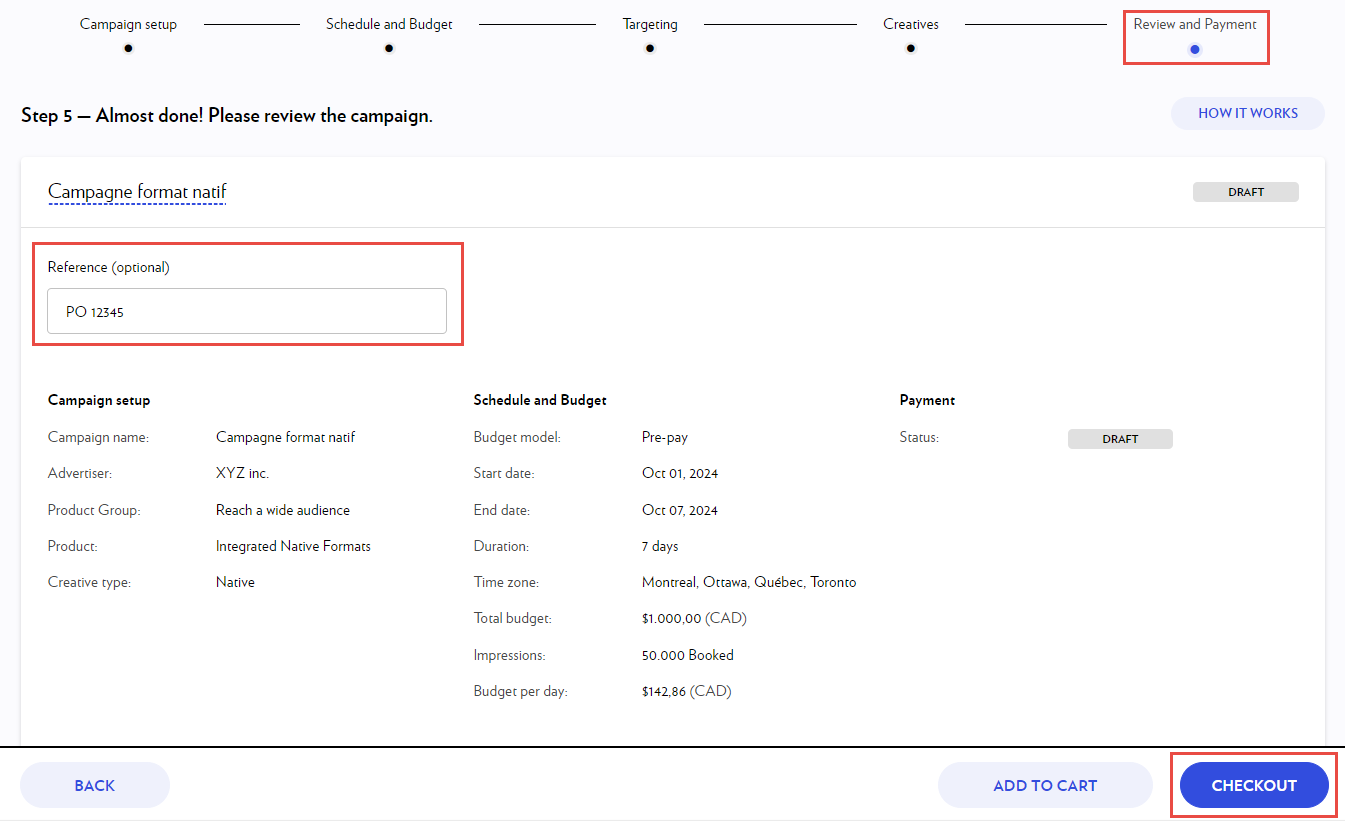
If a purchase order number or your customer's name is to appear on the invoice, add it in the Reference field.
-
Select Checkout.
-
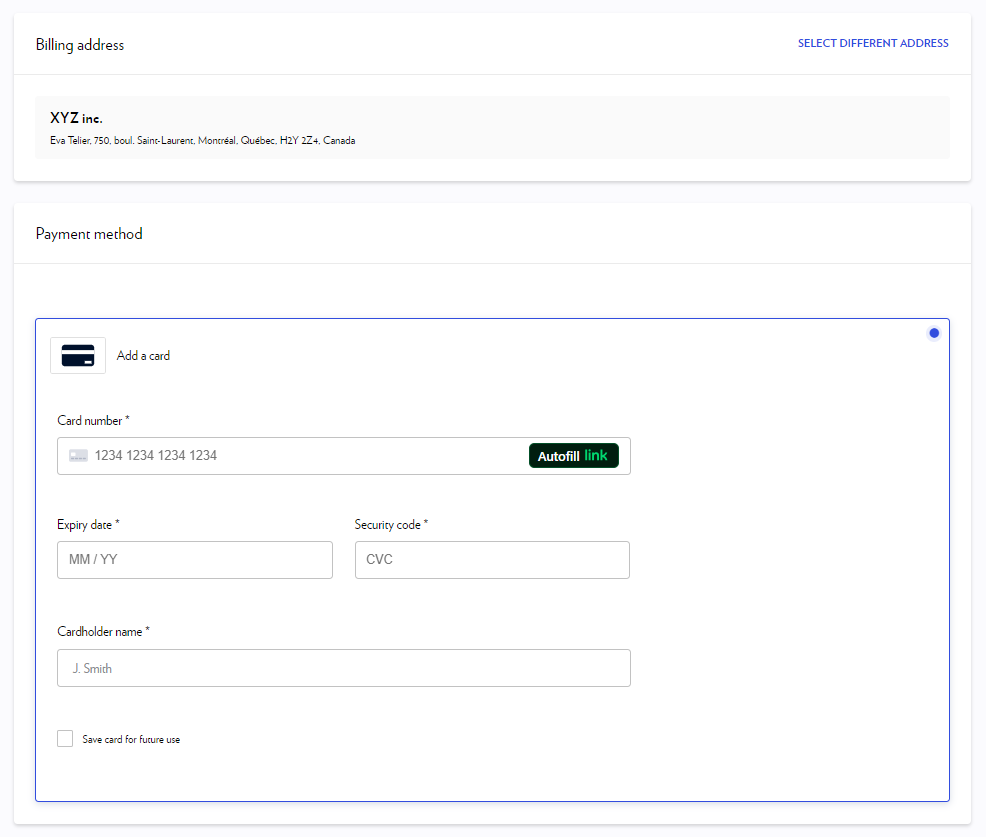
Select the billing address to appear on the invoice.
-
The payment must be made by credit card.
Promo code discount
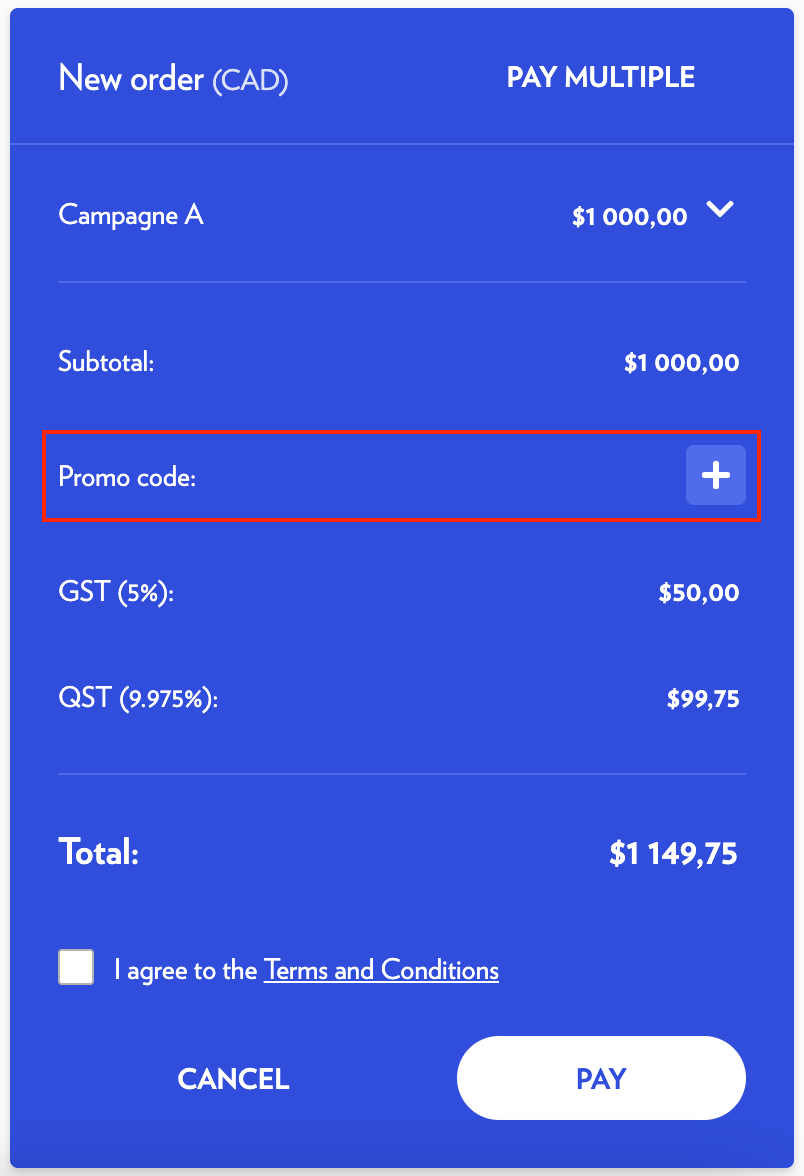
If you have a promo code, you can use it on the Checkout page.
-
Click the + icon.
-
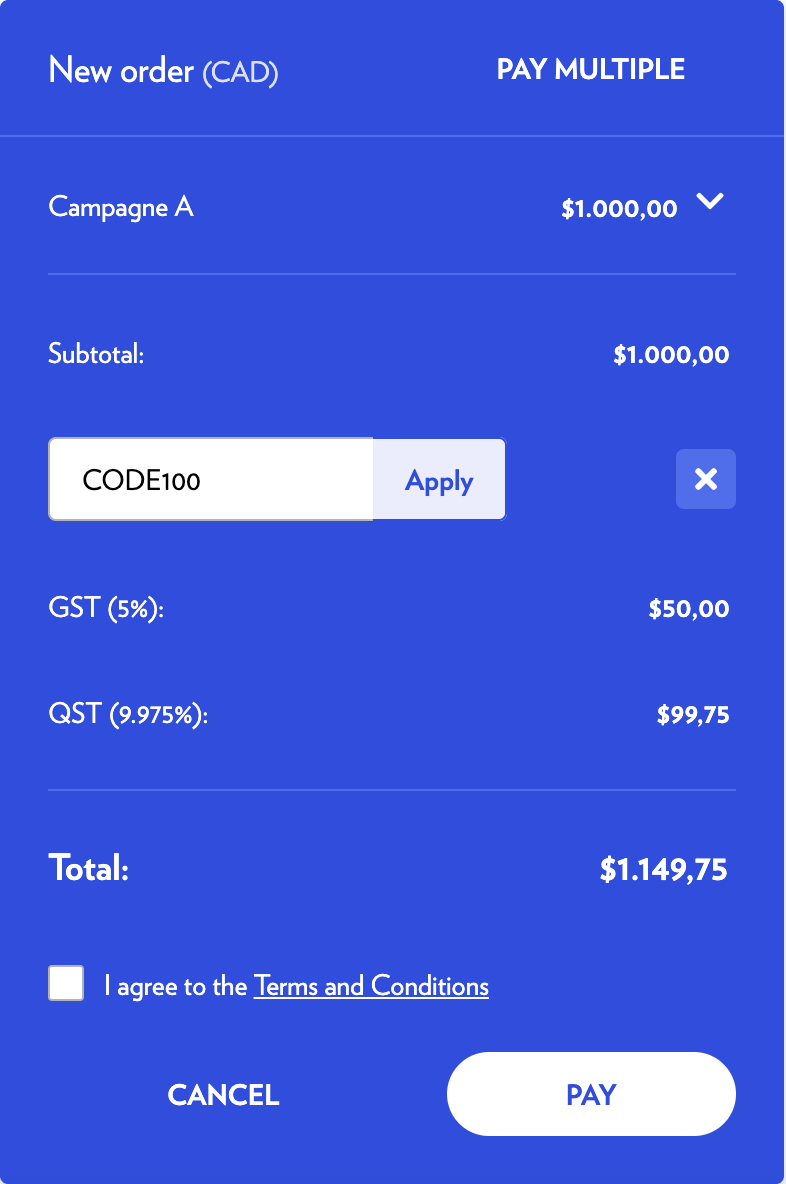
Enter the promo code and select Apply.
-
If the code is valid, the discount is applied.
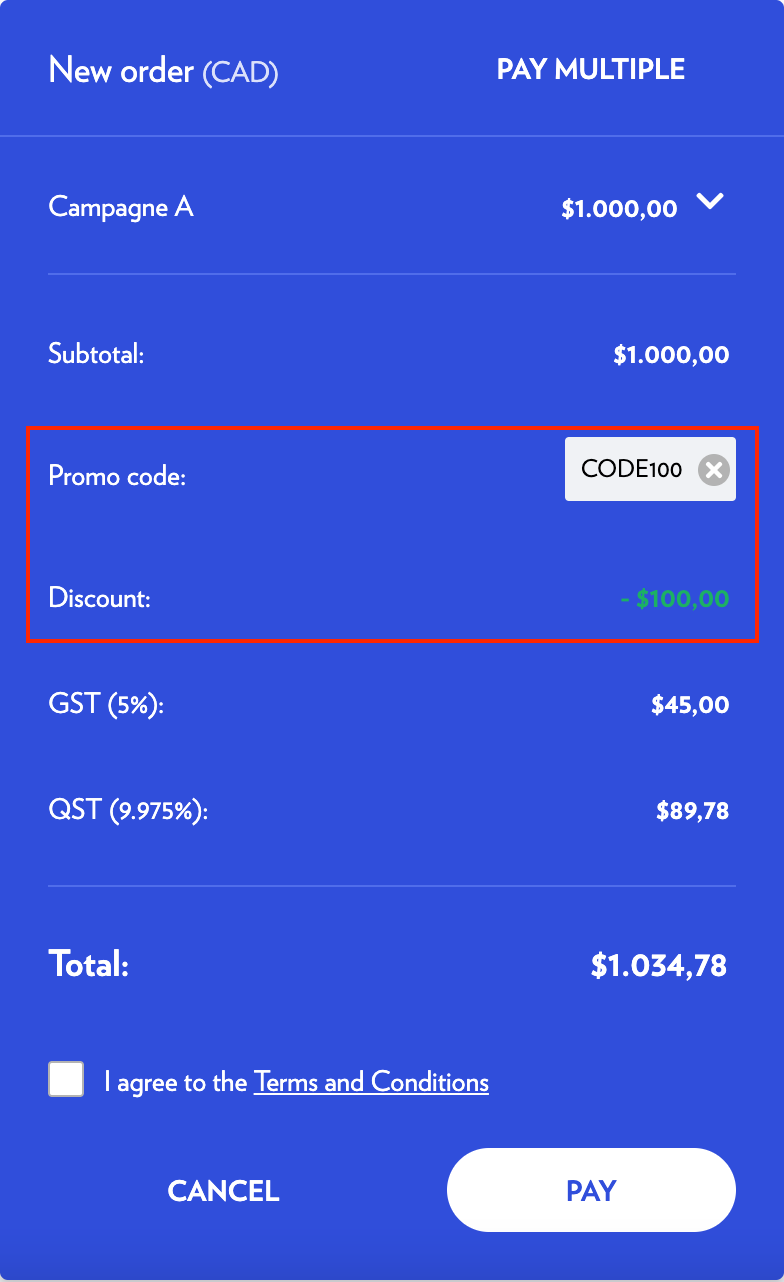
A promo code can be invalid for various reasons:
-
The expiration date has passed.
-
You have already used the code.
-
Your order does not meet the minimum amount required.
-
The publisher has revoked the promo code.
If a promo code is invalid, an explanation message will be displayed.
Payment - Multiple campaigns
You can also pay for multiple campaigns at once.
The selected campaigns will be included in one order.
-
To pay for several campaigns at the same time, you can either:
-
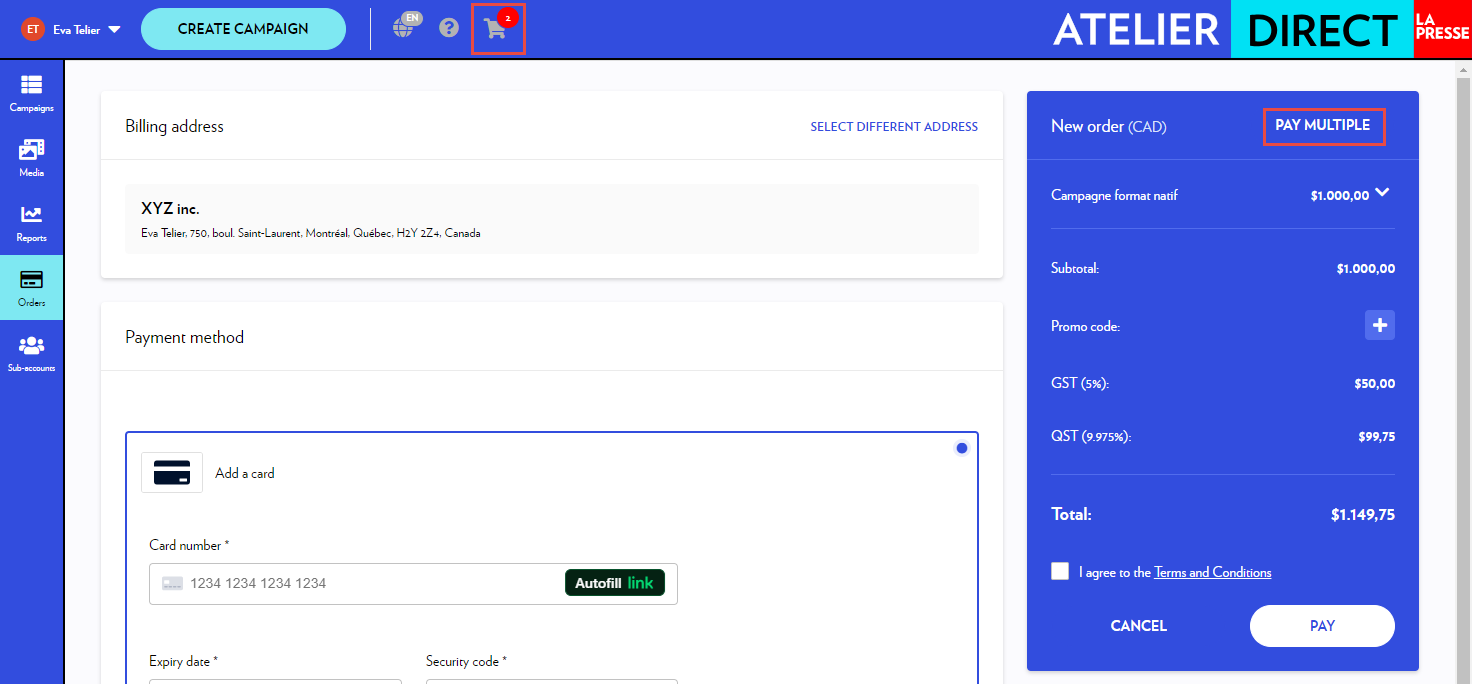
Click on the shopping cart in the top bar
-
Or navigate to the payment page for a single campaign and select Pay MuItiple.
-
-
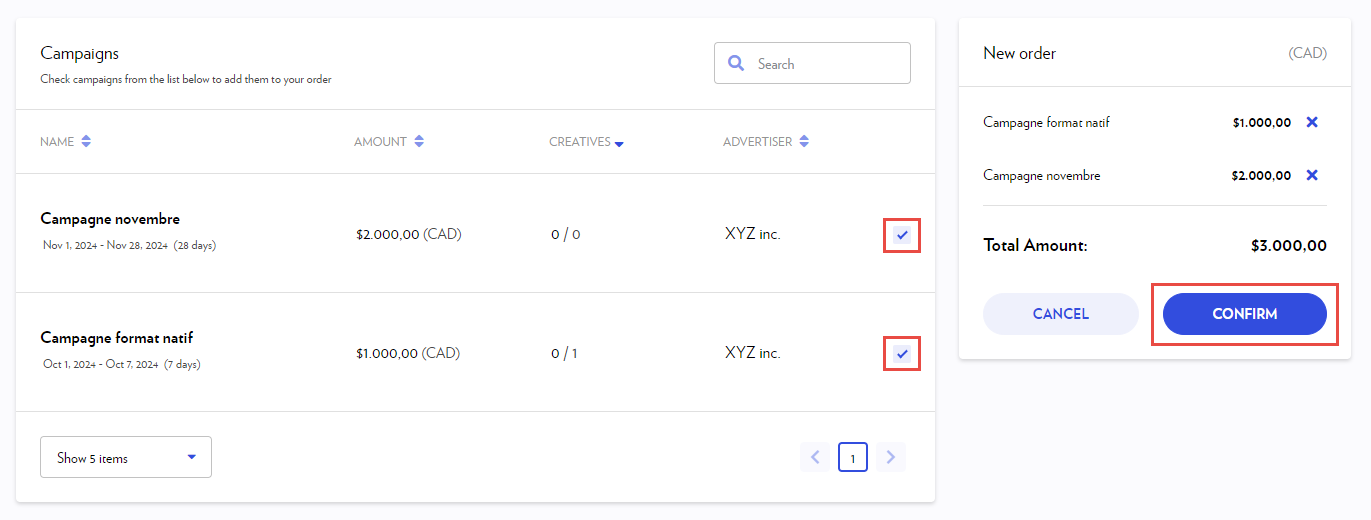
You will be redirected to a list of all your campaigns that have not yet been paid for. Any draft campaigns will also be included in this list, as long as the start date is in the future.
Select which campaigns you wish to checkout and pay for and click Confirm.
-
The system then reviews inventory availability for the selected campaigns.
If there are not enough impressions available, you will be notified. In this case, you can adjust the schedule or broaden the targeting in your campaigns.
-
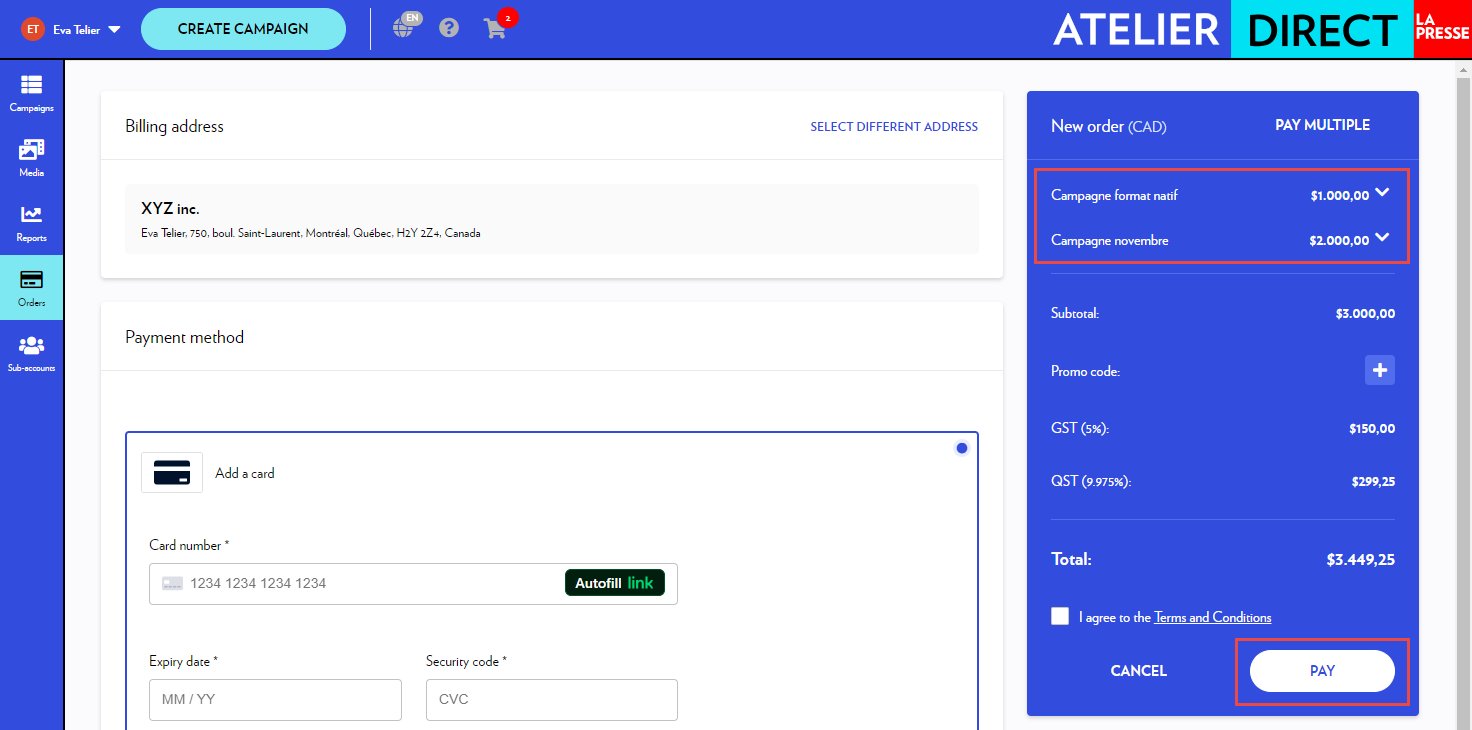
Review the new order.
-
Add or select the credit card you wish to use for payment.
-
Click on Pay.
-
Your credit card will be charged, and a summary of your order will be displayed.
Common questions
Can I be invoiced instead of paying by credit card?
The Atelier Direct platform requires credit card payment before your ad is published.
For post-publication invoicing, you must set up an agreement directly with an advertising consultant. This option requires a minimum budget of $5,000, and your campaign will not be managed through the Atelier Direct platform. If you are interested in this option, please email us at pub@lapresse.ca.
Can I change the company name on my invoice?
Invoices are generated automatically at the time of payment based on the information in your account profile.
To obtain an amended invoice, please follow these two steps:
-
Update your company name in these two locations within your account profile:
-
Under Company details in the Account tab;
-
In the Billing addresses tab (you can add a new address if necessary).
-
-
Email us at atelier-direct@lapresse.ca to request a new invoice, specifying which information needs to be revised.
Please note that reissuing the document may take a few business days.