
The Campaigns dashboard is your landing page upon login, offering an overview of performance and status for all your campaigns.
The page features two tabs: Display and Video. The Display tab consolidates your native and banner campaigns, while the Video tab hosts your video-specific campaigns.
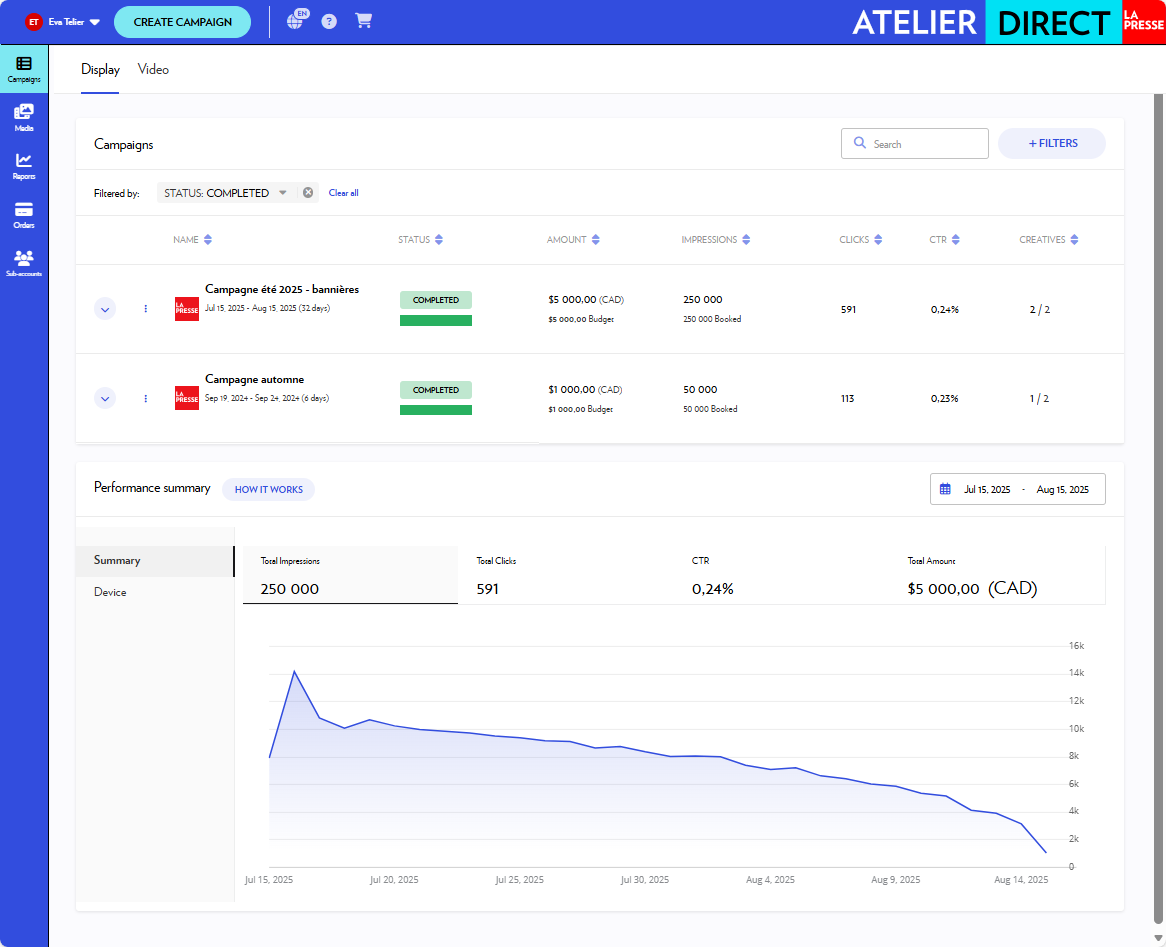
Campaigns list
In the campaigns list, you can search and filter your campaigns.
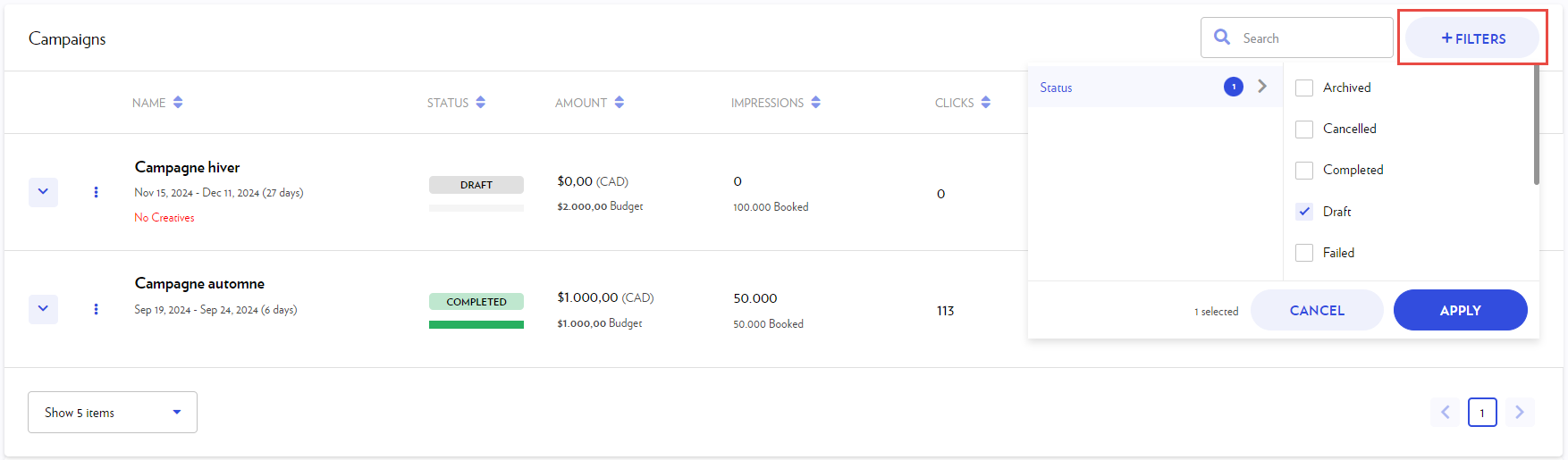
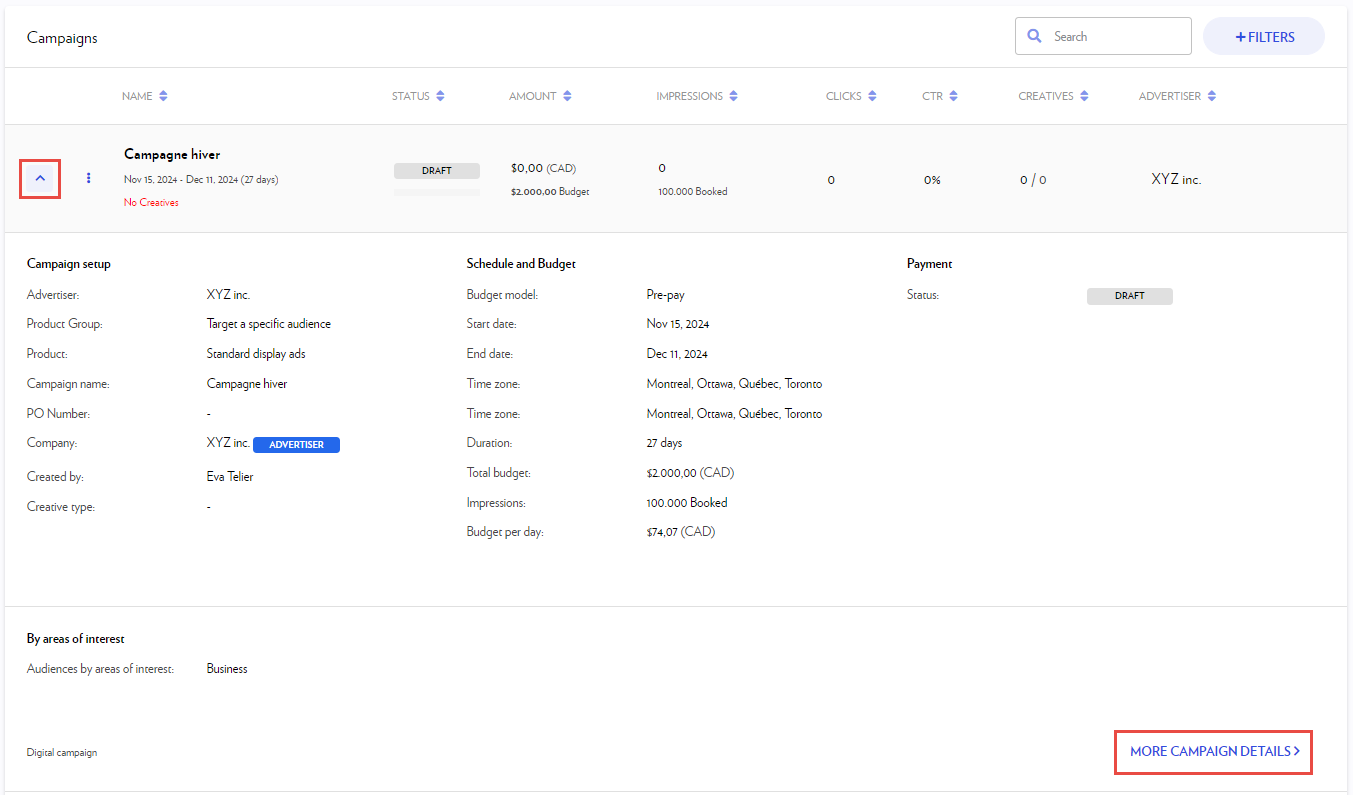
To display the overview of a campaign, click on the arrow to the left of the campaign name. You will find the information on campaign setup, schedule and budget, targeting and payment.
Campaign details
When you have opened the overview of a campaign, you will find the button More Campaign Details that will allow you to access the Campaign details page.
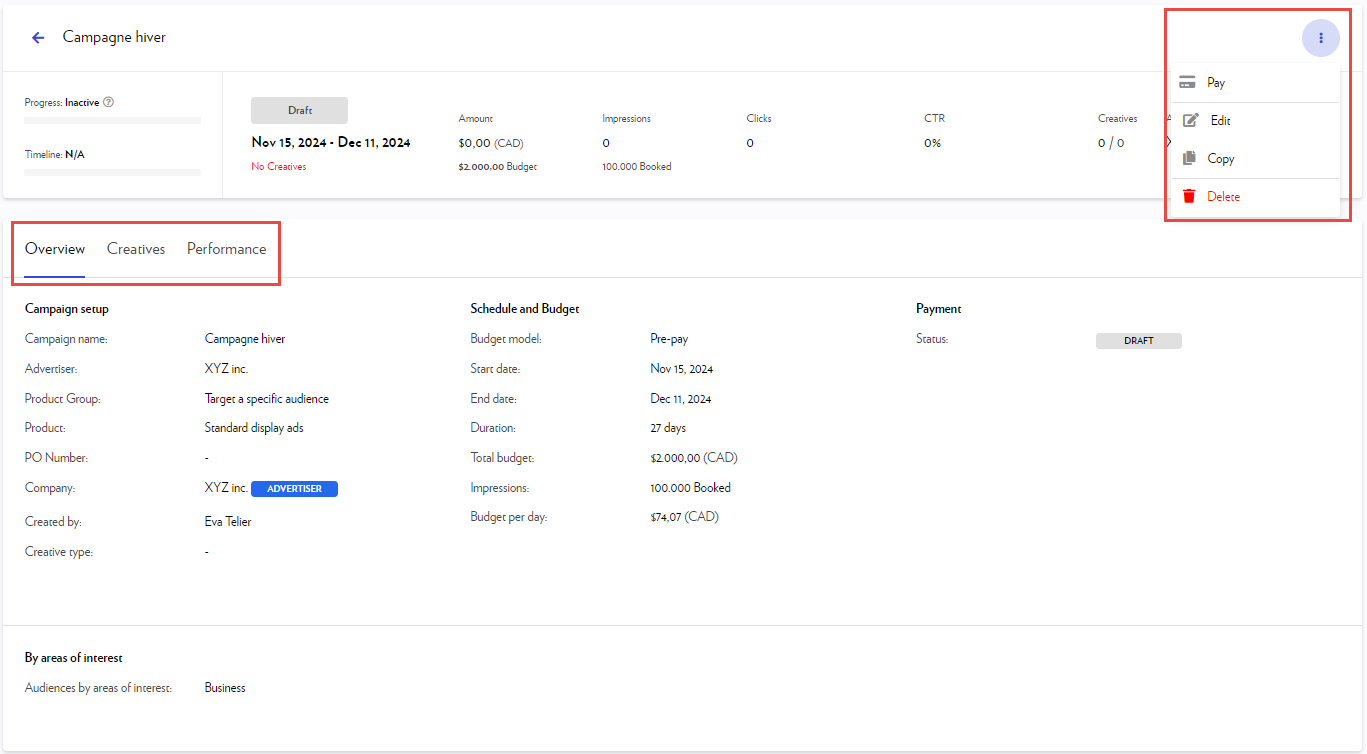
In the Campaigns details, you can Edit, Delete or Copy the campaign by clicking on the three dots in the top right-hand corner.
-
Under the Overview tab, you will find the campaign information.
-
Under the Creatives tab, you will find the list of all the campaign’s creatives.
-
Under the Performance tab, you will find the statistics of the campaign.
Campaign status
A status is associated with each of your campaigns, and changes throughout the process. Here is what these statuses correspond to:
|
Status |
Description |
|
Draft |
Initial status. Campaigns that are not yet paid. |
|
Pending |
Paid campaigns that have not yet started or for which at least one creative must be approved. |
|
Live |
Campaigns that are running. |
|
Paused |
Campaigns that you have paused. The ads are not live when a campaign is paused. |
|
Cancelled |
Campaigns that you have cancelled. |
|
Completed |
Finished campaigns for which the end date has passed and all statistics have been reported. |
|
Processing |
A temporary status. This can happen while the payment is being processed or when a process takes longer than expected. If the status does not change within a couple of days, please contact our Support team. |
|
Failed |
If you see this status, something went wrong. Please contact our Support team. |
“Edit” and “Pay” options from the campaigns list
In the campaigns list, you can Pay for and Edit a campaign by clicking on the three dots to the left of the campaign name.
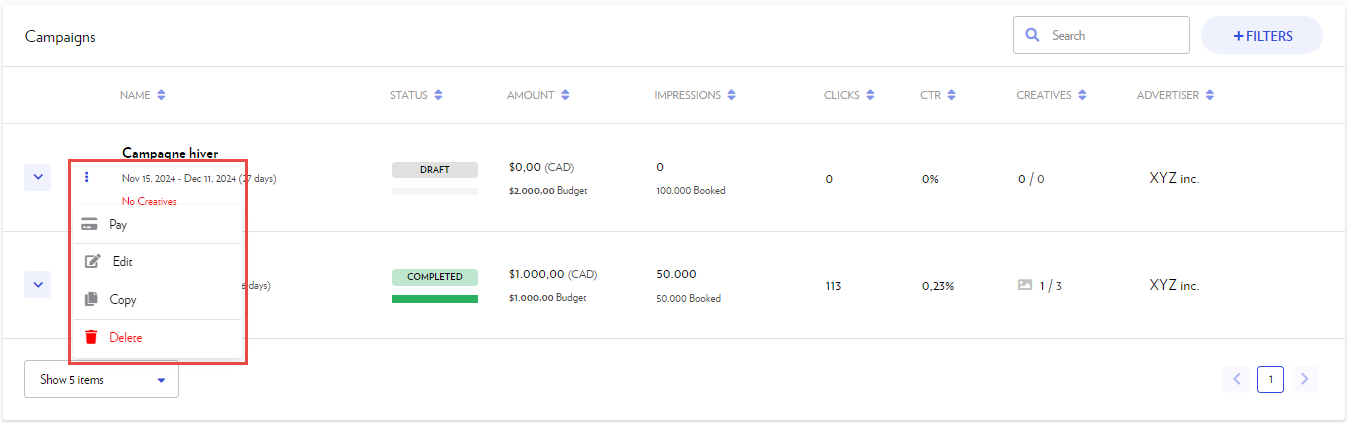
-
By clicking on the Pay button, you will be redirected to the payment section of your campaign. For more information, go to the Checkout and Payment section.
-
By clicking on the Edit button, you will be redirected to the Campaign Wizard. It will allow you to edit your campaign or to resolve conflicts such as:
-
the start date has expired;
-
the inventory is no longer available;
-
the price has changed.
-
Warning messages
In the Name column, beneath the campaign name and its run dates, a message in red indicates an issue that requires your attention.
|
Warning |
Action required |
|
Expired dates |
Correct the start date of your campaign. To do this, go to the Campaigns list, click the three dots to the left of the campaign name, and select Edit. |
|
No creatives No creatives approved |
This warning appears when no creative has been approved. To resolve this issue, add a creative by navigating to the campaign's Creatives tab and clicking on + New creative. Please note that ad approvals take place during regular business hours. |
|
Rejected creatives |
If your creative is rejected, you will receive an email stating the reason. Simply replace the creative by following the tips included in the message. To do this, go to the campaign's Creatives tab and click the pencil icon that appears when you hover over the ad's row. A least one creative needs to be approved for a campaign to go live. |